Zooers — User Guide
Welcome! Zooers is a free companion for visiting zoos, wildlife parks and nature reserves. It tells you what is open, what is happening today, where each animal lives, and — with an account — helps you plan a visit around the animals you want to see, across several zoos. It also has a quiz, for you or for a whole school class.
This guide explains how the app works: what is free, what an account adds, and how the web app and the phone app differ. The pictures are from the web app on a phone; the phone app looks the same.
Contents
- The big idea
- Quick start
- Finding your way around
- A zoo's page
- Animals and the zoo map
- Quiz and badges
- Free, or with access — what you get
- Accounts, free trial and getting access
- The features that come with access
- Shared lists: families and school classes
- Notifications and the bell
- Settings and this guide
- Web app or phone app
- Privacy and your data
- Accessibility
- Troubleshooting and FAQ
1. The big idea
Most zoo apps cover one zoo. Zooers is one app for many partner places:
- Every partner zoo has its own page: opening hours, today's programs, an illustrated map, its animals, practical information.
- Animals are shared across the app. A red panda has one description (diet, size, conservation status, fun facts), and the app knows which places keep one.
- With an account you can build My list — the animals you want to see — and the app sorts it per zoo: "At Zoo A you can see 3 of your animals, at Zoo B 5 of them."
The rule that keeps it fair: a visitor standing in a zoo can always use the app for that zoo, for free. Only planning across zoos and keeping a record of your own need an account with access.
2. Quick start
- Open the app — the web app in your browser, or the phone app.
- The first screen is Places: tap a zoo.
- Browse its animals, read today's programs, open its map. No account is needed.
- Optional: create an account to unlock the Species tab and My list. A free trial starts when you confirm your email address (see section 8).
3. Finding your way around
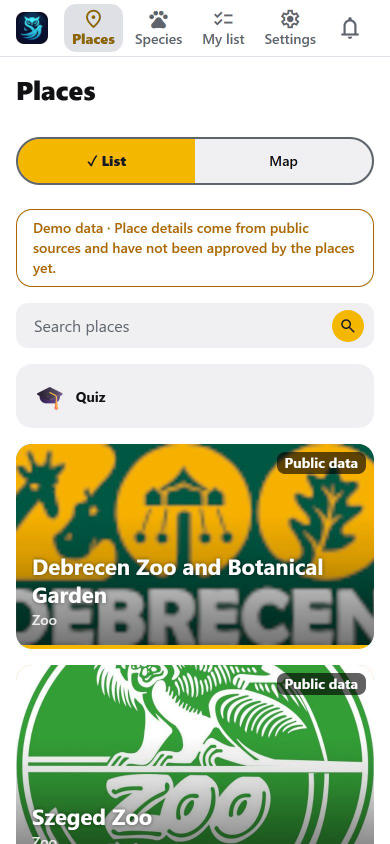
The app has four main areas. On the phone they are the tab bar; in a browser they are the menu at the top.
| Area | What it is | Free? |
|---|---|---|
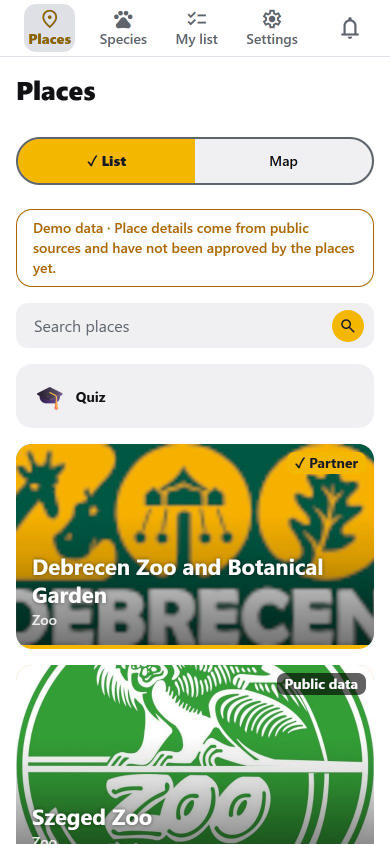
| Places | The partner zoos, as picture cards or on a real-world map. The app opens here. | Free |
| Species | The directory of every animal in every partner place, with search | Needs access |
| My list | The animals you want to see, split per zoo, plus your tools | Needs access |
| Settings | Account, language, privacy, this guide | Free |
Every screen also has the bell (top right) for announcements and notifications. On Android phones, Settings ends with an Exit the app button that asks first (the phone's Back button leaves the app too).
In a browser the app lays out like a web page: on a wide window the Places cards sit three to a row and a zoo's page has the zoo on the left and its sections on the right. The Tab key first offers Skip to content, every control shows a clear focus ring, and the tab's title names the page you are on.
Language. The app speaks Hungarian and English. It follows your phone's language; change it with the globe next to the bell at the top of every screen (it shows the language in use, e.g. EN; tap it and pick a language, or the phone's / browser's own), or under Settings → Language.
!The language menu opened from the globe at the top. The dark and light looks follow your device setting.
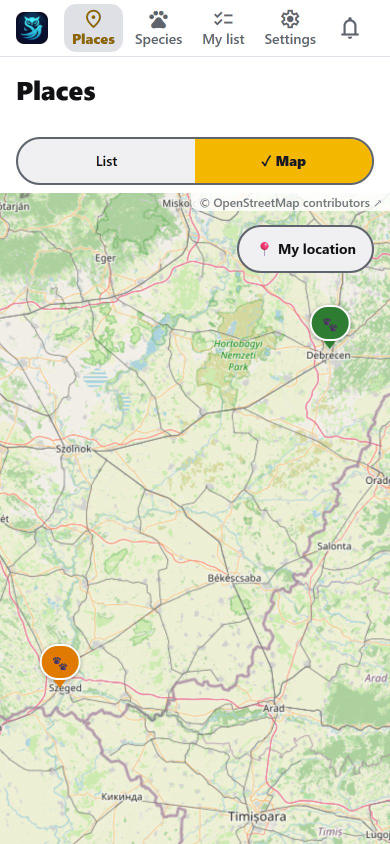
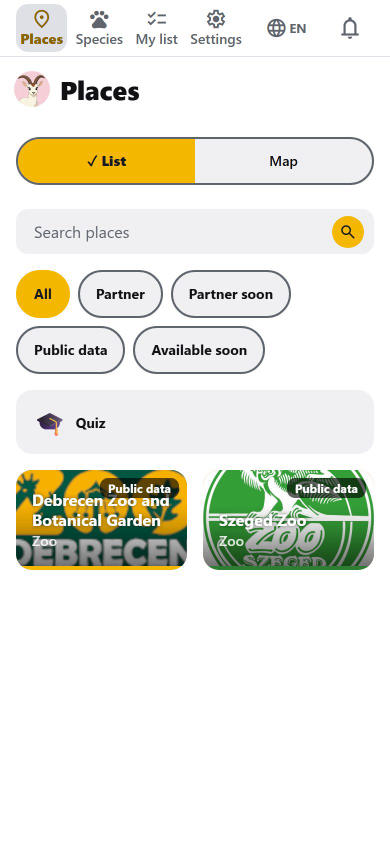
On the Places screen, the List | Map switch at the top changes between picture cards and a real-world map of all partner places (the side you are on is filled and has a ✓; on the map, tap My location to see where you are; your position stays on your device). Places that are close together on the map are grouped into one round bubble with the number of places in it; tap the bubble, or zoom in, and it splits into the single pins. The ⓘ Legend button at the top left of the map explains the pins: the colour of a pin is only the zoo's own brand colour (red, yellow, orange… mean nothing else); a single zoo's pin shows a 🐾 or the zoo's own logo, and a small number in its bottom right corner is how many species from your list are at that zoo (no number: none of them are); the larger round bubble with a number is a group of zoos, and its number counts zoos, not animals; the blue dot is you. Partner and Special partner zoos are never grouped: they keep their own pin at every zoom. On a phone each zoo has its own wide card; on a wider screen two sit side by side. Above the cards, the Quiz tile opens the quiz. The search box finds places by name; with an account it also finds animals across all zoos. A zoo that is still being prepared can show up at the end of the list as a greyed-out picture marked Available soon: it cannot be opened yet. (If you are one of the people the zoo asked to try it out, you see that zoo as a normal card you can open, with the same Available soon mark on it.)

4. A zoo's page
Tap a zoo on Places.
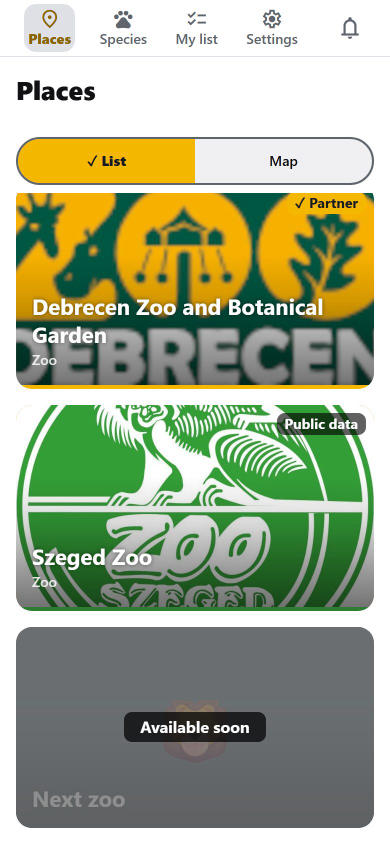
The Places list shows the partner zoos first (a ★ instead of the ✓ marks a special partner), then zoos joining soon, then public-data zoos, then the ones that are available soon. Two rows of buttons above the list filter it by type and by partner status (Partner, Partner soon, Public data, Available soon). The Places list shows the partner zoos first (a ★ instead of the ✓ marks a special partner), then zoos joining soon, then public-data zoos, then the ones that are available soon. Two rows of buttons above the list filter it by kind of place and by partner status (Partner, Partner soon, Public data, Available soon). When at least one zoo has listed an association (e.g. MAÁSZ, EAZA), a third row filters the list by association. A Partner badge on a zoo's picture means the zoo works with us and has approved its page. A partner zoo's page says at the top that the zoo manages its own information. A zoo marked Public data was added from public information: what the app shows is limited, the zoo does not manage it, and some details may be wrong or out of date. Its page says so at the top. A zoo marked Partner soon has told us it will join, but the agreement is not signed yet, so its page is still built from public information. When three cards sit in a row, the words do not fit: a Partner soon zoo then shows a small ✓… mark, a partner a ✓.
Filters on Places. Above the list, one row has two drop-downs: Type (the kind of place) on the left and Partner status on the right. Tap one to choose in a small window; the button then shows your choice, and choosing All clears it. A third drop-down, Association, appears on a second row only when the app's owner has switched it on (it helps once the zoos have entered their memberships). On the map a partner zoo's logo is shown in a round pin ringed in the zoo's colour; a white logo sits on a dark background so it stays visible.
An animal's page. The action buttons (list, seen, favourite…) sit in one sliding row, styled like the group navigator on the Species tab. The ⓘ next to the Favourite button opens a small window with its explanation; tap outside it or ✕ to close it. An animal opened from a zoo's page takes that zoo's colours. With the collection look on, an animal's photo is in colour once you have seen it at any zoo, and greyed (with Not seen yet under it) until then, as on the Species tab. An animal that is on your list shows only the list's Seen / Not seen state, not a second tick.

A zoo that is open only in the warmer months says Closed for the season · opens again with the date, in place of "Closed today", from the day its season ends until the next one begins. Plan my visit then offers the days ahead.
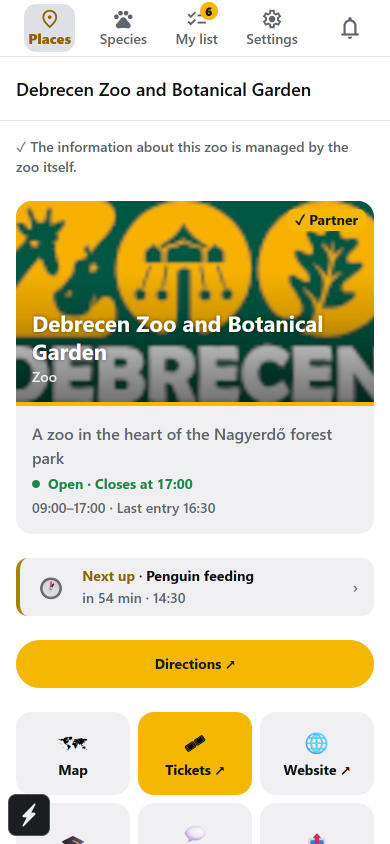
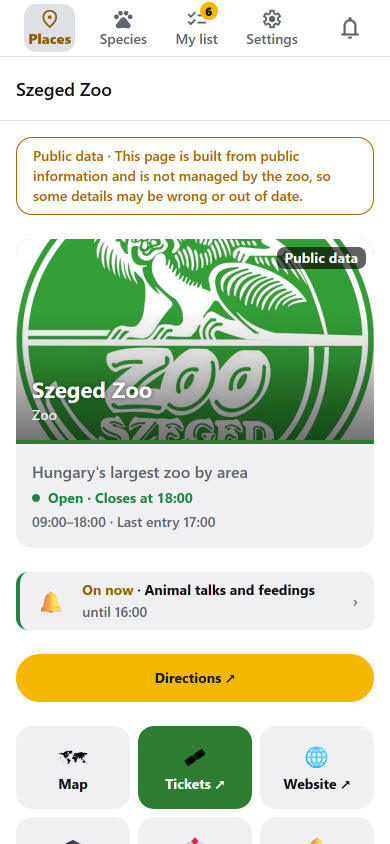
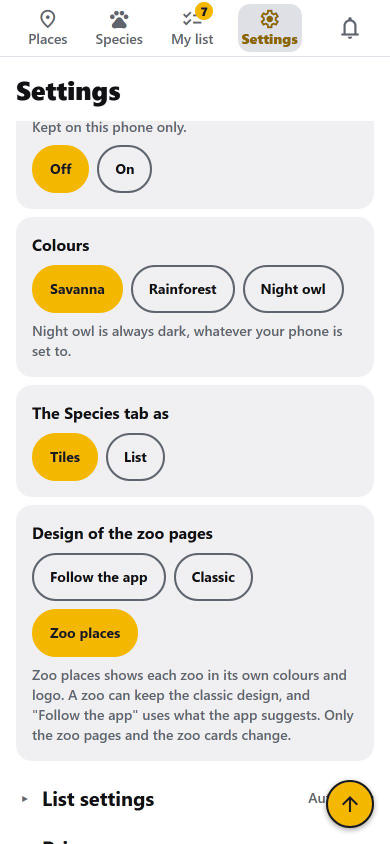
Zoo places (a second design, for accounts with at least one month of full access). In Settings → Look → Design of the zoo pages you can choose how the zoos look: Classic (the design everybody has), Zoo places, or Follow the app (the default: what the app suggests, which can change, and each zoo can still keep the classic design). In Zoo places each zoo shows itself in its own colours and logo: on the Places list its card has a coloured band, its logo on a round chip, whether it is open and how many of the animals on your list you have already seen there; on its page there is a cover picture with the logo and the name under it, Directions and Tickets as the two big buttons, round quick actions (Map, Website, Quiz, Notify me, Share, Offline and the rest) and a row of sections (My list, Species, Programs, Info and, when the zoo has them, Articles and Videos) that stays in view while you scroll. The rest of the app (the menu, Species, My list, Settings, signing in) takes the same softer shapes (cards with a soft shadow, bolder headings, flat grey buttons and chips, species pictures with the name underneath, and in Settings a round mark with your initials and your access as a chip) but never a zoo's colours; friends and members of a shared list get a round mark with their initials, Badges, Diary and Passport open with a big coloured summary card, the selected tab on the phone's bottom bar sits on a soft chip; in My list each zoo's list starts with its logo, name and a progress bar in its colour, and High contrast always keeps its own black and white. The screens that belong to one zoo (Plan my visit, the map, the stamp, Offline, notes and feedback) wear that zoo's colours too, so you do not fall back to the plain look when you leave its page. A zoo can choose to keep the classic design for everybody, and someone who chose Classic keeps it in every zoo.
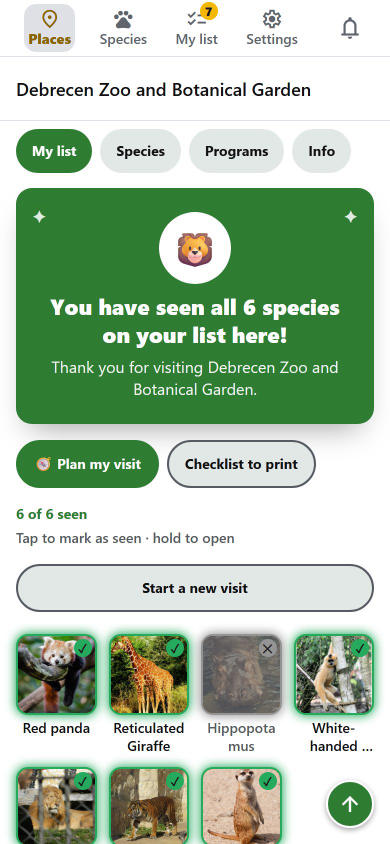
Two small moments belong to this design. When you open a zoo by tapping it in the Places list, its logo and name show on its colour for about a second before its page (the app's own start screen stays the Zooers one; opening a zoo from a link or a QR code does not show it, a tap skips it, and it is left out when your phone is set to reduce motion; a zoo can also switch it off). And when you have ticked every animal on your list that can be seen at a zoo, the zoo's My list shows a card in its colour with its mark and a thank-you, and its card in Places says All seen.
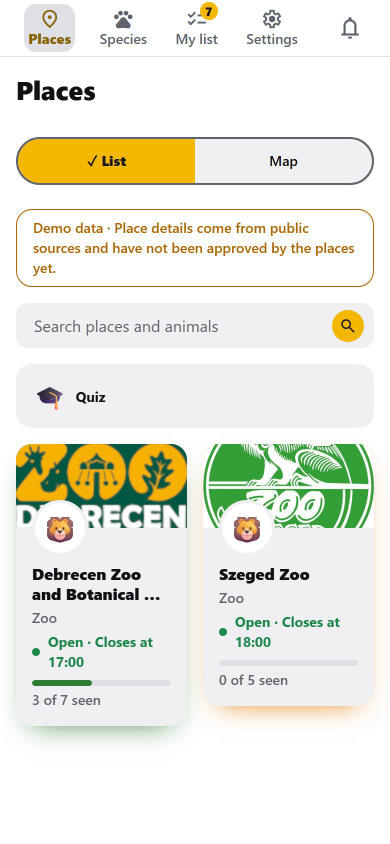
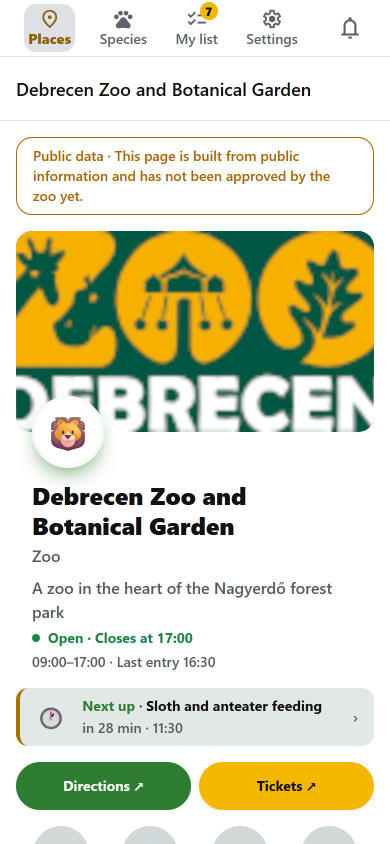
A zoo can show its own logo (small on its card in Places, and on a coloured band at the top of its page) and its colours: a thin stripe under its card, the Tickets button and the "Next up" strip. On the pages of a partner zoo that chose it, the app wears the zoo's colours (buttons and highlights in its colour, the page and cards with a touch of it or a warm cream; the app keeps the text readable) and your own colour look does not mix into them; only High contrast (Settings → Look) switches this off and keeps its own black and white. A partner zoo's printed cards (checklist, visit card, class card) and the certificates of its quizzes can carry its colour and logo, and on the Places map its pin can be its logo. A partner zoo can also pin a short notice (📢) at the top of its page, for example a closing day, and feature up to five animals in a Meet our favourites row. When you share a partner zoo that has its own link preview, the message shows the zoo's name, a line about it and a picture with its logo.
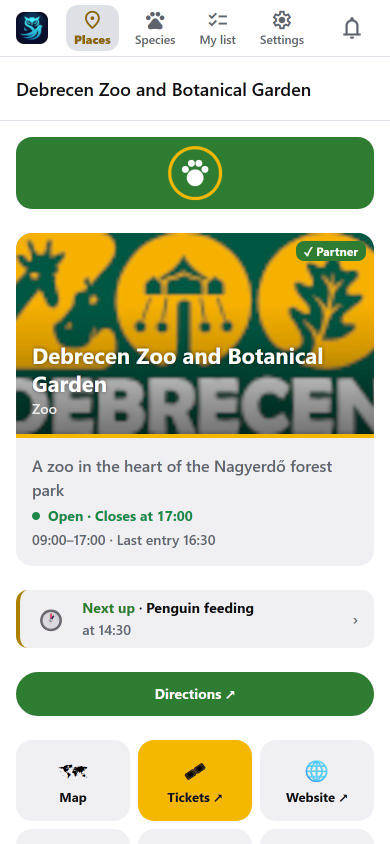
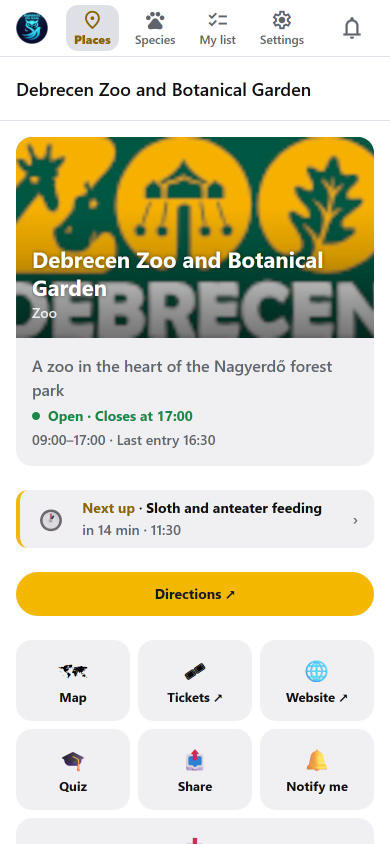
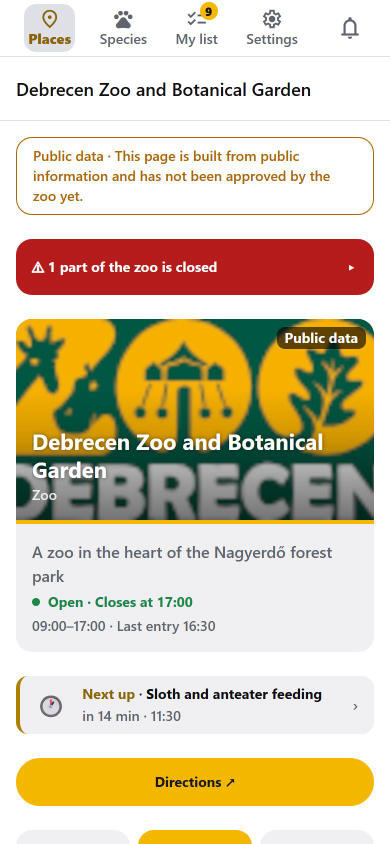
The header shows whether the zoo is Open or Closed, today's hours, "Closing soon" and the last entry. Some zoos show a ⭐ line about Kajla stamps (the children's visitor programme). Under it:
- Next up — one line for the program that is on now or starts next ("Next up · Sloth and anteater feeding · in 22 min"). Tap it to jump to the animal or to the programs.
- Directions hands the address to your maps app.
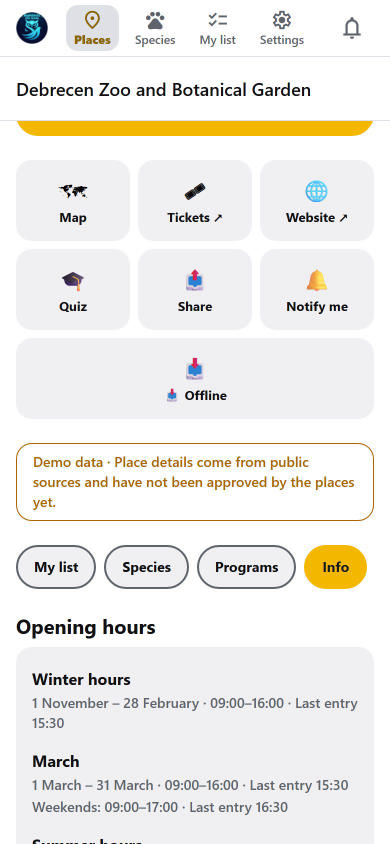
- Tiles for Map, Tickets and Website (the ↗ means it opens outside the app), Quiz, Share and Notify me. In the phone app there is also Offline (see section 9).
Below the header the page has sections you can swipe between, or tap:
- My list — your checklist for this zoo. Without access you see a short offer instead.
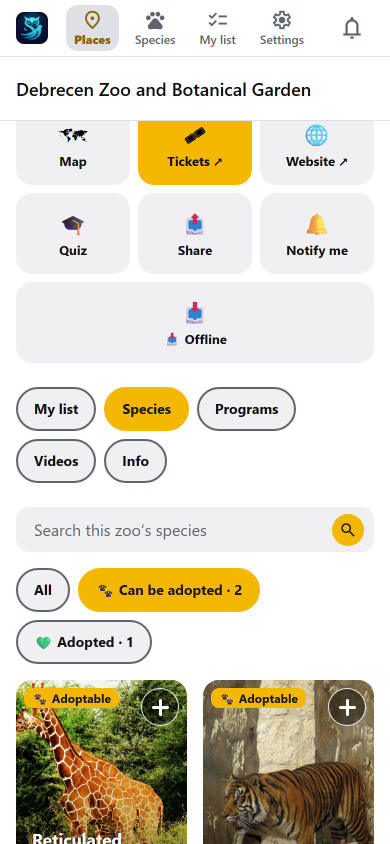
- Species — all the animals of this zoo, grouped by building or area. The search box finds an animal by name in any language, by scientific name or by enclosure. Tap an animal to open it. A zoo can mark the animals that have been adopted with 💚 Adopted and the ones that can be adopted at the zoo (a symbolic adoption that supports an animal's care, arranged with the zoo, for example in person) with 🐾 Can be adopted; buttons above the list show only those. This is information only: you cannot adopt through the app, and adopters' names are not shown.
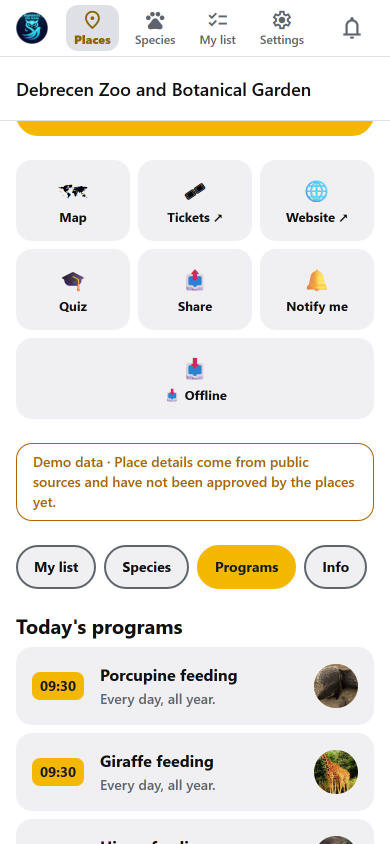
- Programs — today's programs (feedings, keeper talks), the zoo's regular programs with their days, times and season (shown even on a day without any program, free for everyone), and special events.
- Articles — links to news and articles about the zoo.
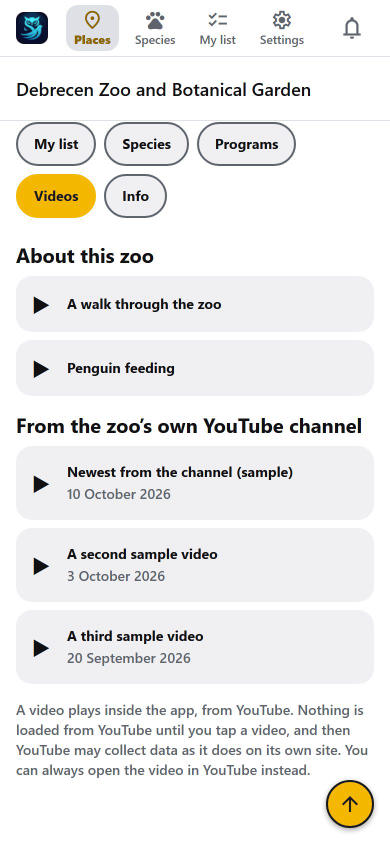
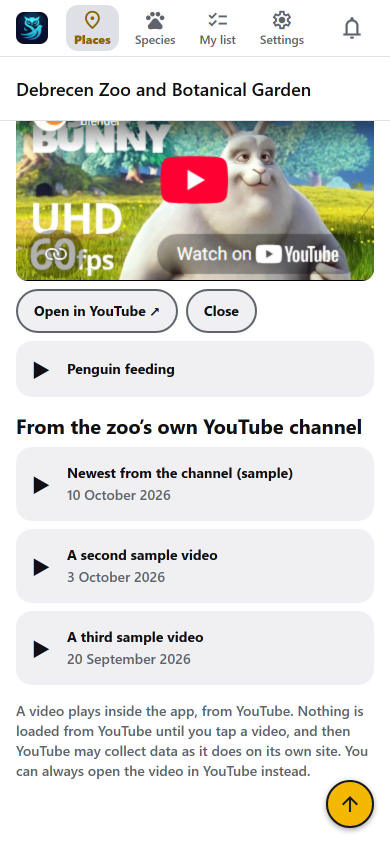
- Videos — shown when the zoo has some: videos about the zoo (for example a walkthrough) and, when the zoo has its own YouTube channel switched on, its latest videos. Tap a video and it plays right there in the app; Open in YouTube opens it in YouTube instead. Nothing is loaded from YouTube until you tap a video, and then YouTube may collect data as it does on its own site.
- Info — about the zoo, opening hours (weekends and special days too), services, accessibility information (step-free routes, accessible toilets, wheelchairs to borrow, quiet hours and more), FAQ and contact details. Zoos may also list their rules, the international programs and associations they belong to, and the animals they rescued or released (a photo and a short story each). There is no contact form; the app does not collect messages from you.
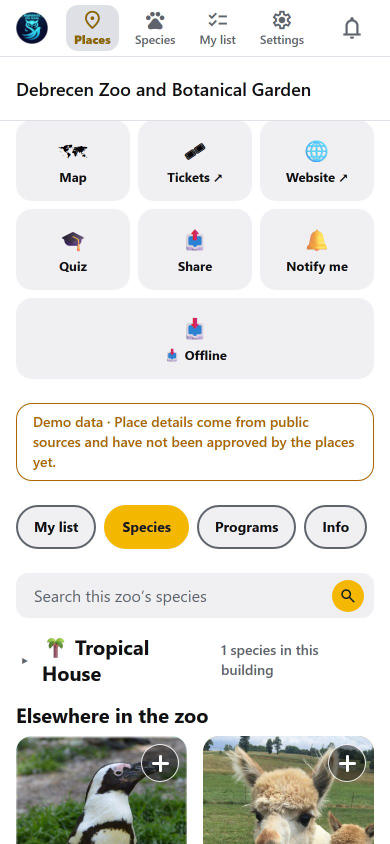
Every building is listed first, closed — tap one to open it. Below them come the animals that are not in a building, 30 at a time; press Show more for the next ones. The tiles follow your cards per row choice in Settings → List settings.
Closed paths and buildings
If part of a zoo is closed for a while (a pathway under construction, a house shut for repair), its page starts with a red notice: tap it to open the list of what is closed, why, and until when. 🗺 takes you to the closed sign on the zoo map; a closed building shows the sign on its pin. Every zoo can use this, and the zoo's own staff keep it up to date.
The zoo's video
If the zoo has a main video, its picture on the zoo's page has a play button in the bottom-right corner. Tap the picture and the video plays right there, in the picture's place, from YouTube (nothing is loaded from YouTube before you tap).
Tell the zoo how it was
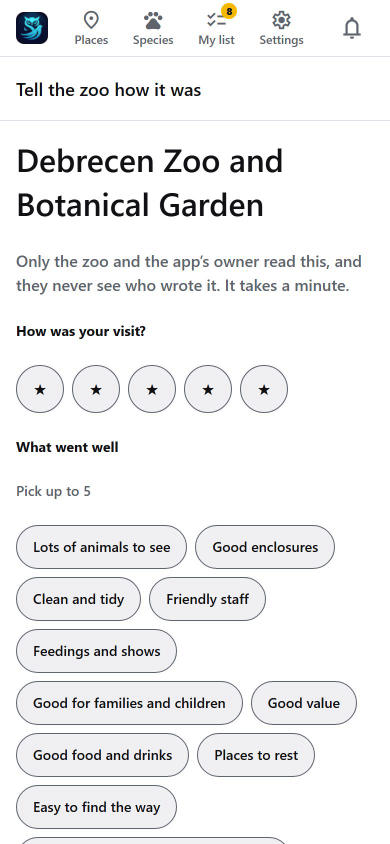
A zoo that takes part (the app's owner switches it on zoo by zoo) has a Tell the zoo how it was tile on its page when you are signed in. It opens a short form: an optional score from 1 to 5 stars, up to five points that went well and up to five that could be better. Only the zoo and the app's owner read it, and they never see who wrote it.
It is for people who really visited: you can send it after you have ticked an animal as seen at that zoo (within the last two weeks), once per visit day. Your email address must be confirmed. Feedback is deleted with your account. Some partner zoos add a few answers of their own to the lists, after the standard ones; you tick them the same way. Starting a new visit (see My list) does not stop you sending feedback for a visit you just had.
Initiatives: questions the zoo asks you
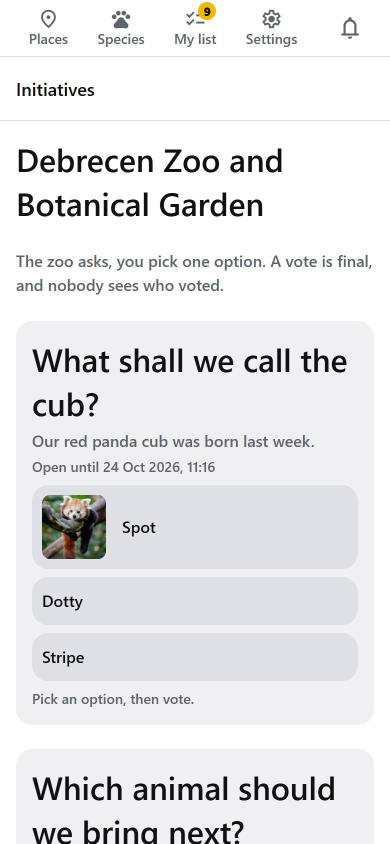
Some zoos put a question to their visitors: how to name a newborn, which animal to bring next. When a zoo does, an Initiatives button appears among the round (or square) buttons on its page, lit while there is something open you have not voted on yet. Each question shows its options, with a picture when the zoo added one. Pick one, then press Vote for …; a vote is final, so you are asked once. After you vote you see how the others voted (when the zoo chose to show results straight away) or that the result appears when the question closes. A closed question shows its result to everybody, with percentages once at least 10 people voted, and the number of votes before that. Who may vote is the zoo's choice together with the app's owner: every signed-in account with a confirmed email address, only people who follow the zoo (tap the bell on its page), or only accounts with access. Everybody can read the questions; if you may not vote yet, the card tells you why and what to do. Your vote stays with your account only so nobody votes twice, and goes when you delete the account; nobody, not even the zoo, sees who voted for what. You need a connection to vote and to see results; the questions themselves can be read offline.
Check in at the zoo
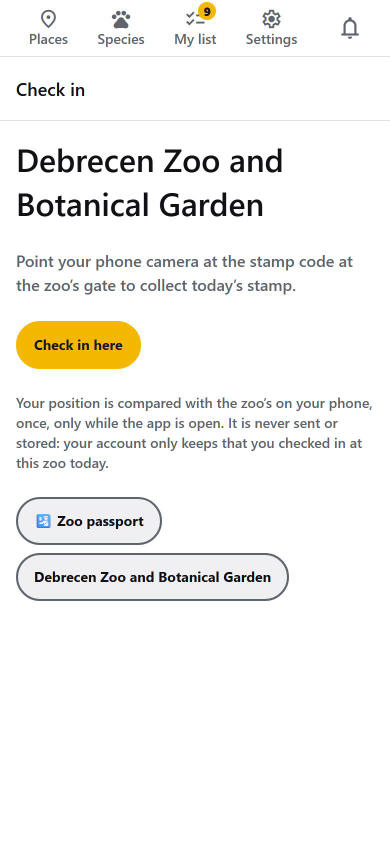
A zoo that gives visit stamps (the app's owner switches it on zoo by zoo) shows a Check in tile on its page when you are signed in. You get one stamp per zoo and day, in the way the zoo has set up:
- Scan the zoo's stamp code. Point your phone camera at the code at the zoo's gate. It opens the website in your browser: no app is needed, an iPhone is fine. You do not have to sign in at the gate. The scan is saved on your phone, and as soon as you sign in or create an account within 7 days, the stamp is yours, dated the day you scanned. On an iPhone, tap Share and then Add to Home Screen, so the browser does not forget the scan. After 7 days a saved scan can no longer count: scan the code again on your next visit. Use your phone's camera. On an Android phone, tap Open this page in the app and continue in the installed app.
- Check in by position. Press Check in here while you are at the zoo: the app asks to see where you are, just this once and only while it is open, and compares it with the zoo's on your phone. Your position is never sent or stored; only the fact that you checked in today is kept with your account. If you are not at the zoo yet, it says so. This way works only at the zoo, not afterwards.
A stamp also counts as proof of a visit when you tell the zoo how it was, so you can do that without ticking an animal as seen first. Stamps are deleted with your account.
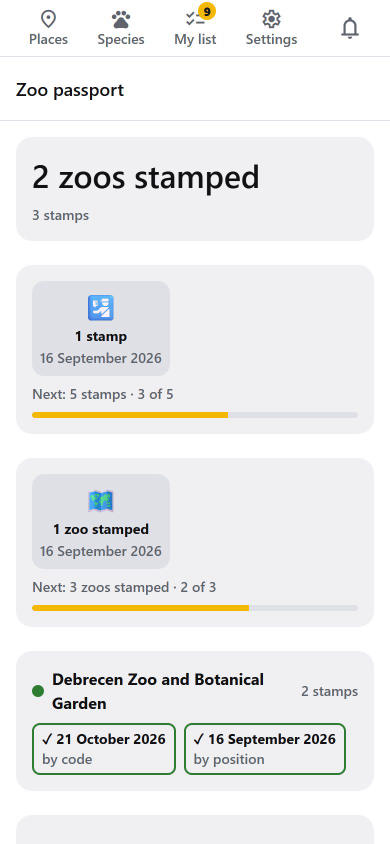
Your stamps are collected in the Zoo passport: a button on the Check in screen, and on the My list tab. It lists every zoo you have a stamp from, with the days and whether each was by code, by position or given to you by the app's owner. A zoo can choose the shape of its stamps and put its own small picture on them; the stamps are drawn in the zoo's colour. At the top are your stamp badges: medals for 1, 5, 10, 25 and 50 stamps, and for stamps at 1, 3, 5, 10 and 25 different zoos (they also show in Badges). It needs only your account, no full access.
5. Animals and the zoo map
An animal's page is free when you open it from a zoo:
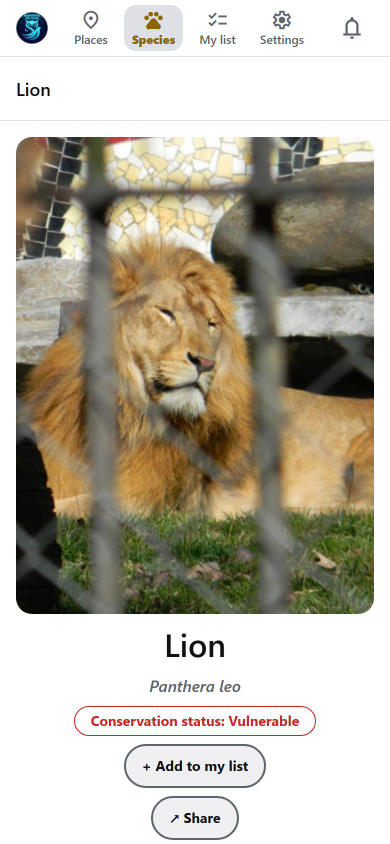
- Up to three photos (swipe; tap a photo to enlarge it full screen, then pinch or double-tap to zoom and swipe to the next), the name, the scientific name and the conservation status.
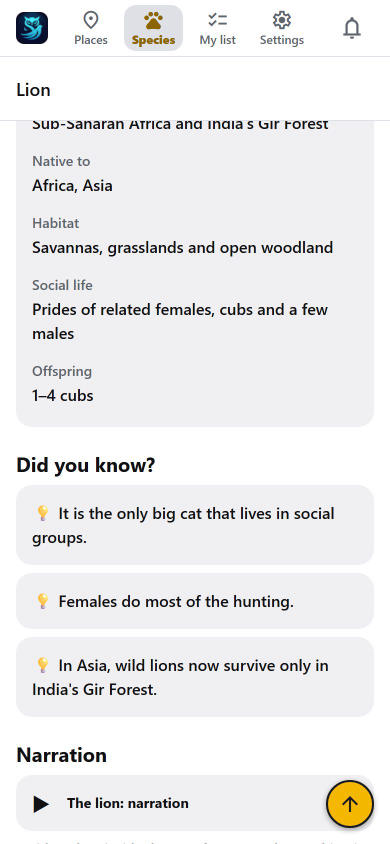
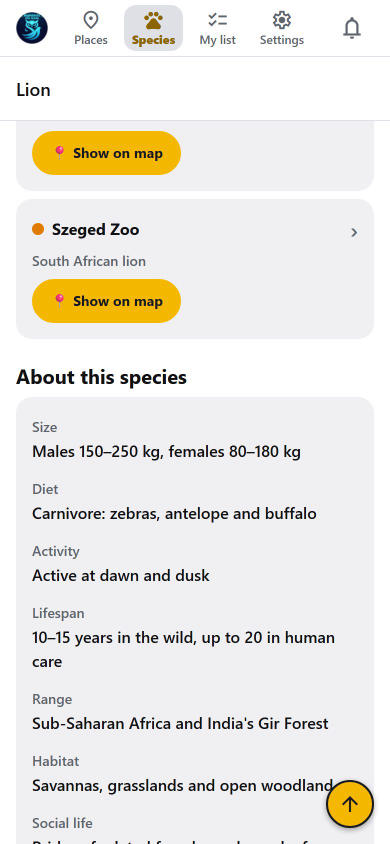
- About this species: size, diet, when it is active, lifespan, range, habitat, social life, offspring, a story and Did you know? facts.
- Where to see it: every partner zoo that keeps it, with its enclosure and a Show on map button. The zoo you came from is marked 📍 You're here. When you open an animal from one zoo's own animal list, only that zoo is shown at first, and the others are behind an Also in N other zoos button (press it to see them, and Show only this zoo to fold them away again). Opened from the Animals tab or by a link, every zoo is listed.
- The zoo's own pictures of its animal, programs for it, article links, and Nightbird's animal videos and songs. The Narration (a spoken guide to the animal) and the Watch videos play inside the app when you tap them; songs open YouTube.
- Share sends a web link to the animal that anyone can open, with or without the app.
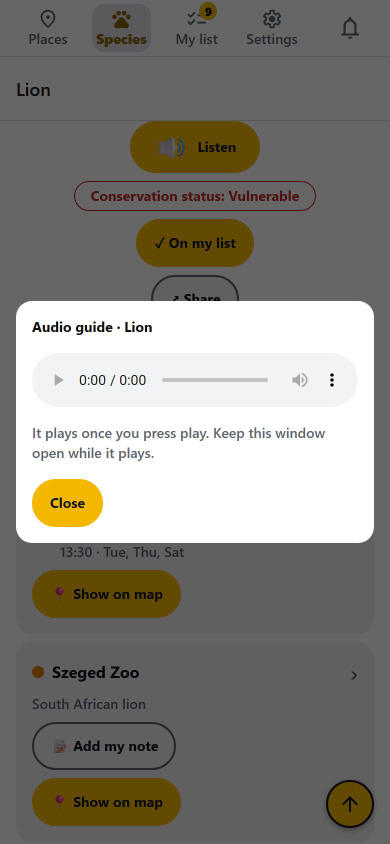
Listen. Under an animal's name there is a large 🔊 Listen button when the app's owner has recorded an audio guide for it, in your language if there is one. It opens a small window with a player (YouTube, or a plain audio player when the guide is an audio file): press play and listen, and the bar shows how far it has got. Nothing is loaded from YouTube until you press the button, and it needs the internet. Keep the window open while it plays: closing it, or locking the phone, stops it.
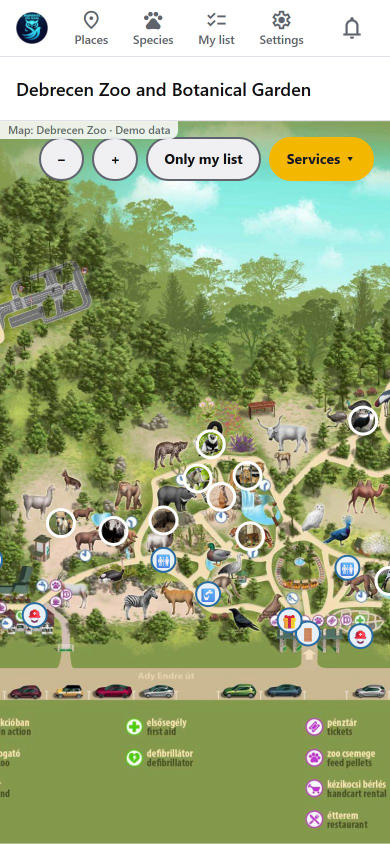
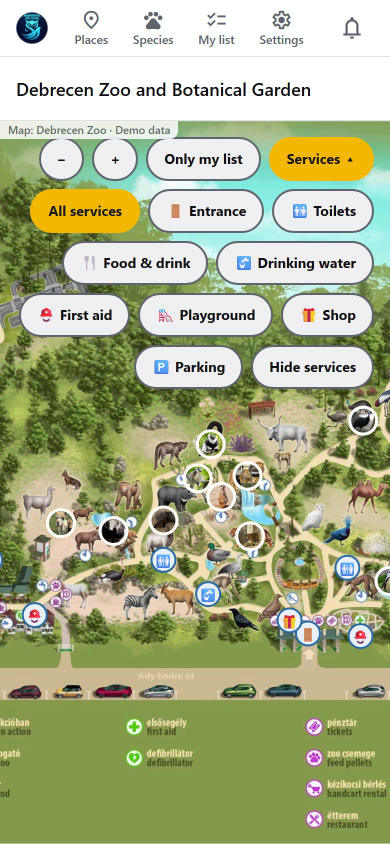
The zoo map is an illustrated map with pins for animals and facilities.
- Tap a pin to see the animal or facility. An animal's card has a round button on the right: + adds it to your list; once it is on your list the button turns into − and removes it again, and a Seen box appears under the name. If the animal is already ticked as seen, the first tap on − only asks you to tap again, so a tick is not lost by accident.
- Services opens a filter: choose Toilets, Food, Baby room… to show only those pins, so you find the toilet quickly.
- A building with several animals has one pin with the number of animals; tap it to open the floor plan.
- Pins close together fan out, so you can tap each one.
- Only my list shows only your animals (needs access).
- Live map or picture: there is nothing to choose. With internet (or the map saved on the phone) the zoo map is the real map with the pins in their real places; without, the app shows the zoo's own map picture by itself. The picture is a drawing (SVG) when the zoo's map was made with the map tool, so it stays sharp when you zoom in.
- The picked pin and its card: the pin you tap grows to two and a half times its size and a large card slides up at the bottom with the animal's photo (whole, in its own shape, filling the card's height), its name in big letters and a round + to add it to your list (hold the pointer on it, or long-press, to read Add to my list; an animal already on your list has its seen tick box there instead). Tap the card to open the animal.
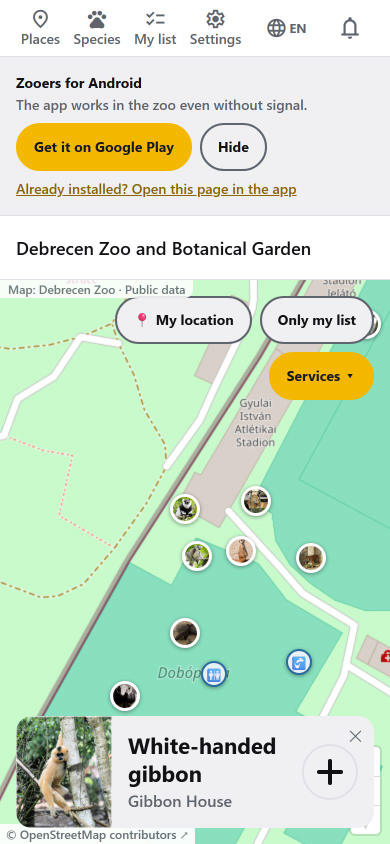
- Offline maps (Settings, phone app): the live map of each zoo is downloaded by itself over Wi-Fi and kept on the phone, so it works without internet; switch it off, choose Download only over Wi-Fi (on by default; off also allows mobile data), download now or delete the saved maps there. Without internet and without a saved map the zoo map shows the picture.
- 📍 My location (on a zoo whose map is placed on the real earth) shows a blue dot where you are. It uses the phone's GPS, works without internet, and your position never leaves the phone. If you are not at the zoo, the app says so instead of showing a dot.
- Grey dashed areas on a zoo's live map are parts of the zoo where phones get no mobile internet, and the map says so. Save the zoo for offline use (the Offline button on the zoo's page, phone app) before you go there, and the map, the animals and your plan still work.
- An animal can live in more than one place in a zoo; each place has its own pin.
QR codes on signs. A zoo may put QR codes at enclosures. Scanning one with the camera opens that animal's page, with that zoo first. It works on any phone, even without the app. Use your phone's camera. On an Android phone, tap Open this page in the app and continue in the installed app. If the zoo on the sign is not in the app any more, you see a short message and a button to the list of places; if the zoo no longer lists that animal, its page says so and shows the zoos that do.
6. Quiz and badges
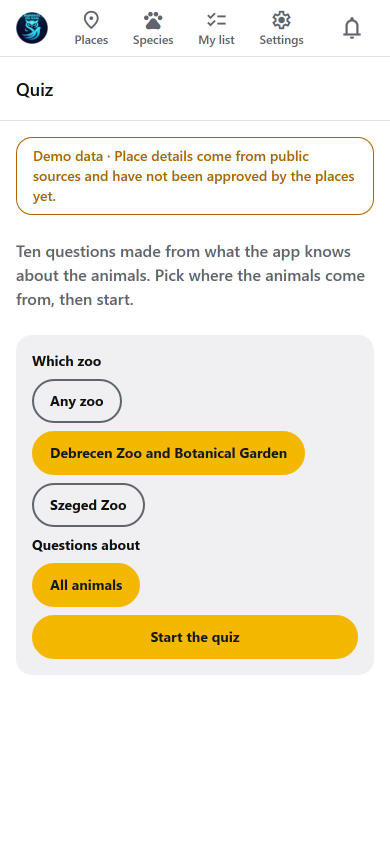
The quiz needs no account. Open it from the Quiz tile at the top of Places, or from the Quiz tile on a zoo's page.
Choose what to be asked about. Pick Any zoo or one zoo, and where the animals come from: All animals, My list, or Animals I have seen (the last two appear when you have some). Then press Start the quiz.
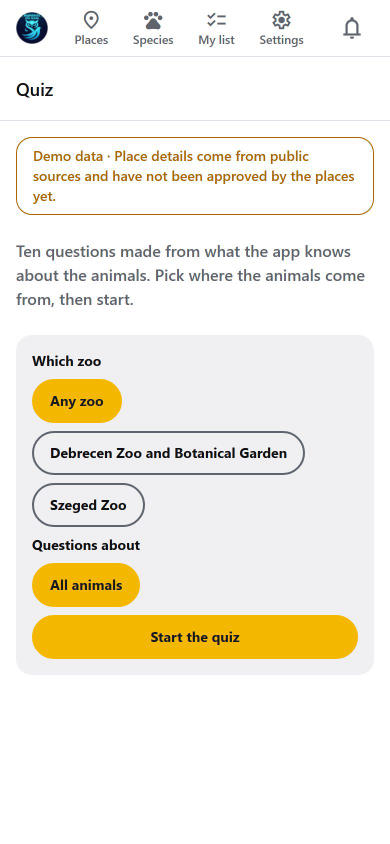
Ten questions are made from what the app knows about the animals — conservation status, when an animal is active, which group it belongs to, what it eats, how big it is, how long it lives, where it lives — and picture questions: "Which animal is this?" or "Which of these is the …?". A question is only asked when the app really has the facts and pictures for it.
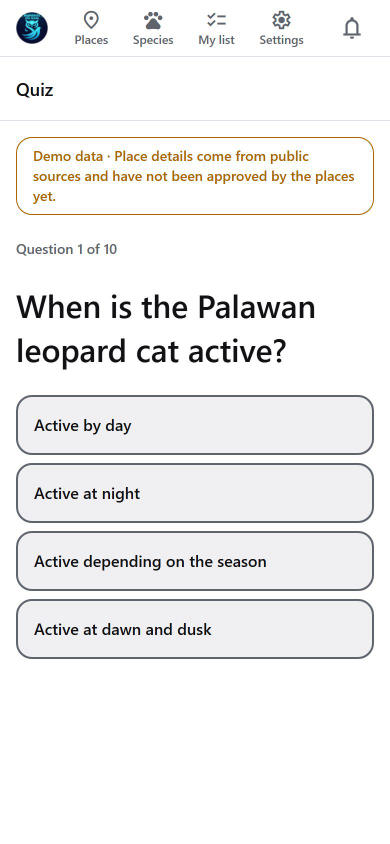
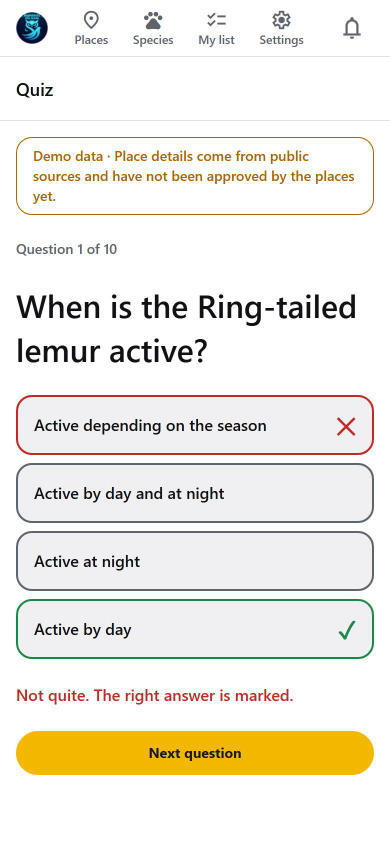
After the last question you see your result. Your right answers add up over all your quizzes, on your phone or with your account.
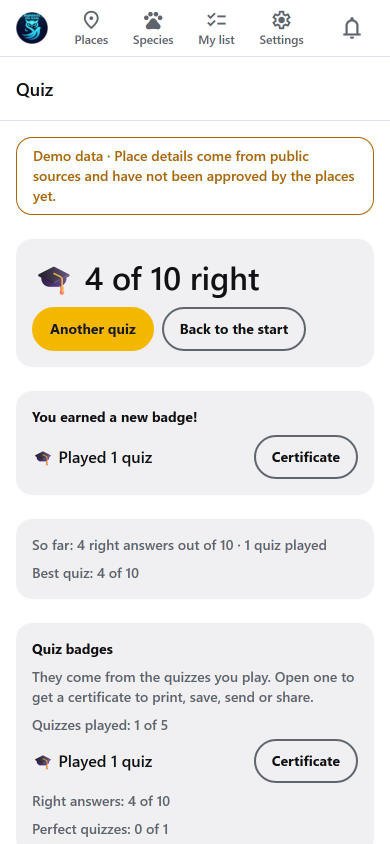
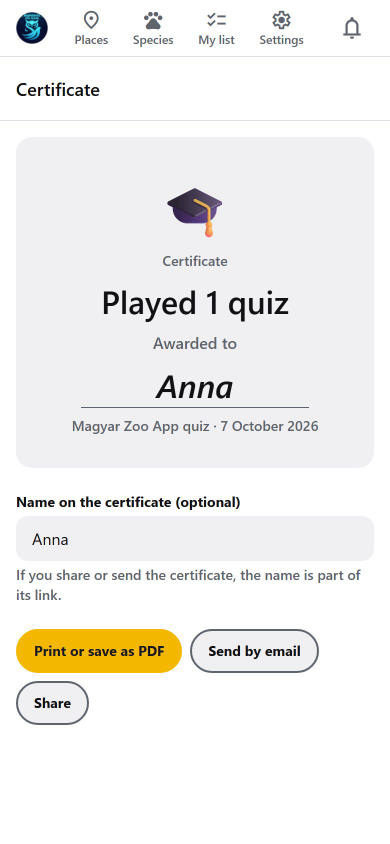
Badges. You earn quiz badges as you play: for the number of quizzes played, the right answers you have given, perfect quizzes, and a zoo expert badge for a good result in a quiz about one zoo. Every badge has a Certificate: add a name if you like, then print it or save it as a PDF, send it by email or share it. The name is part of the certificate's link if you share it.
Quizzes by the zoos. A partner zoo can write its own quizzes. They show on the quiz screen as Quizzes by the zoos, marked with the zoo's name, and may give the zoo's own badge when you get enough answers right. A zoo can also choose that its quiz is for people with an account (it is free to create one).
Class quiz. A teacher can run a quiz for the class — see section 10.
7. Free, or with access — what you get
Quiet notes. Where a part of the app is for members, you may see a short note such as Members can search the places and animals and filter the list. Close it with the ✕ and it stays away for a while (the owner sets how long, 15 days by default). The notes inside a locked setting stay, so the setting is never an empty box. They never ask for money and never open a payment page. Depending on what the owner switched on, search and filters on Places, the other zoos on an animal's page, Places list settings and offline zoos and maps are for members; the settings and the offline zoos are earned with at least one paid month and then stay.
Free for everyone — no account
- Places, the list and the real-world map
- Everything on a zoo's page: hours, open or closed, Next up, programs and special events, the illustrated map with pins, buildings, floor plans and the services filter, the species list with search, Info, FAQ, contact, accessibility information, articles
- Animal pages opened from a zoo, with photos, facts, "where to see it", videos and songs
- Directions, Tickets, Website, Share and QR-code links
- The quiz, its badges and certificates
- Settings: language, privacy, this guide
- Announcements in the bell
With access — an account plus a free trial, an access period, a coupon or staff access
| Feature | What it does |
|---|---|
| Species tab | The full directory of every animal in every partner place, searchable, each showing "At 3 places" |
| My list | Collect animals with the + button; the list is split per zoo and kept with your account when you change phones |
| Seen marks | Tick off animals as you see them; "seen" counts across all zoos |
| Plan my visit | A suggested walking order through your list at one zoo, fitted to feeding times and closing hour |
| Compare zoos | Ranks the zoos by how many animals are new to you |
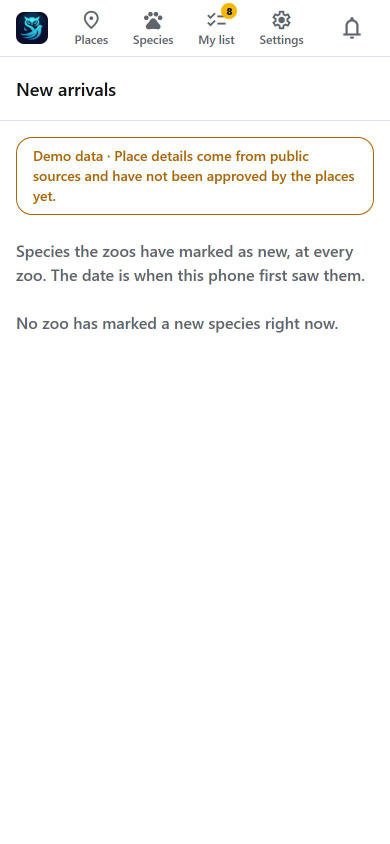
| New arrivals | Every newly arrived animal across all zoos |
| Visit diary | Every visit with what you ticked off, and yearly totals |
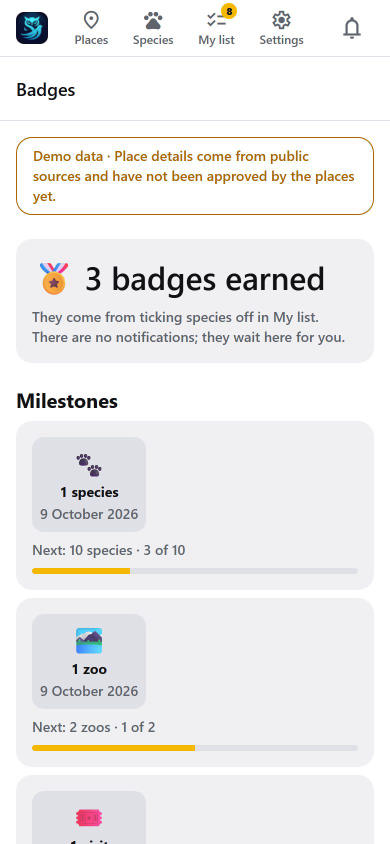
| Badges and collections | Quiet milestones and collections ("every big cat") with progress |
| Notes and photos | A note and up to 3 photos on an animal at a zoo. The note text is kept with your account; photos stay on your phone only |
| Offline zoo pack | Keeps all of a zoo's pictures on your phone for use without signal |
| Zoo notifications | Reminders the evening before special events at the zoos you follow |
| Shared lists | A list for up to 5 people, or a class-trip list (section 10) |
When access ends, nothing is deleted. Your list stays saved and is locked until you renew.
8. Accounts, free trial and getting access
Create an account
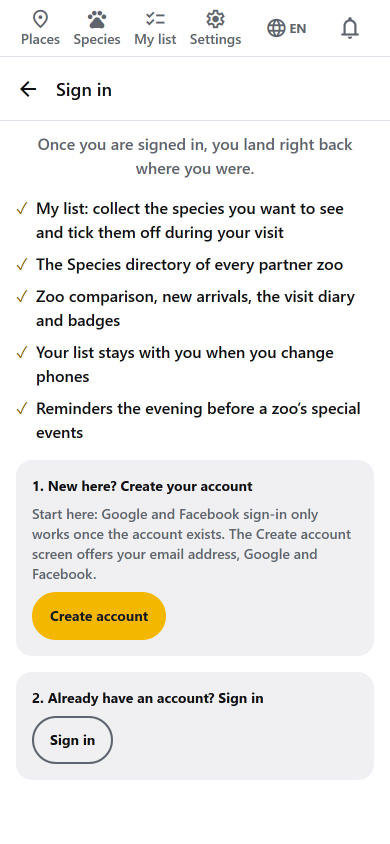
You do not have to look for the sign-up: tap anything that needs an account (My list, the Species tab, the diary, badges, the visit plan and the like) and the app takes you to a screen that names what you came for and what an account gives you. It offers the ways in in this order:
- New here? Create your account. Start here. Signing in with Google or Facebook only works for an account that already exists, so a first-time visitor creates the account first (with an email address, or with Google or Facebook on the Create account screen).
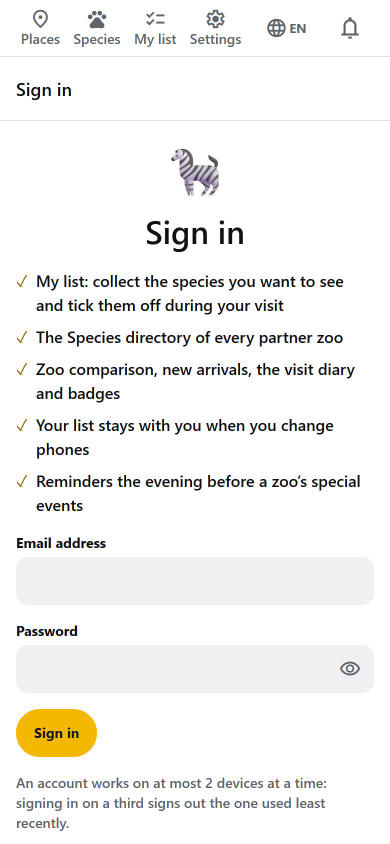
- Already have an account? Sign in: with Google (where shown), Facebook, or your email address and password.
Under the headline the screen also shows how much is waiting behind the account: the number of species in the catalog, how many of them a partner zoo keeps today, and the number of partner zoos. When the owner has set a teaser video, one line, ▶ Watch what the app can do, opens it outside the app when you tap it. The screens for Badges and New arrivals add one number of their own (how many badge collections there are to complete, as faded symbols, and how many new arrivals the zoos mark now; the animals' names stay behind the account), and a zoo's My list section tells you how many species you could pick from at that zoo. If you tapped + on an animal before you had an account, the app remembers it on your phone, shows how many choices are waiting, and puts them on your list by itself as soon as the account can keep a list (after you sign in and, if asked, confirm your email address).
When you are signed in, the app brings you straight back to the screen you came from. Pressing Back instead leaves it as it was.
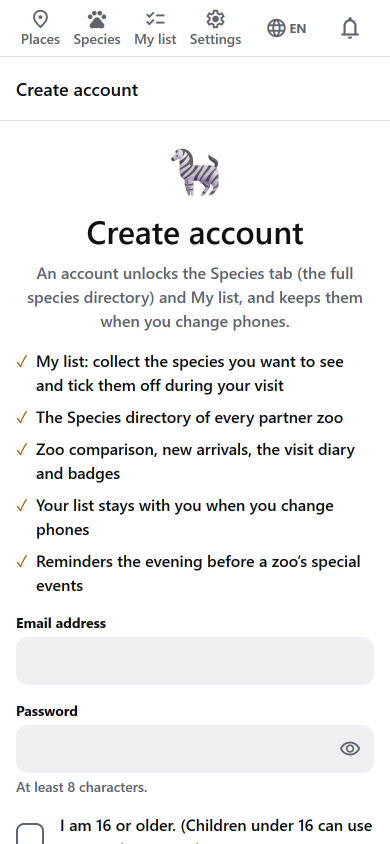
- Use an email address and a password (at least 8 characters), and tick that you are 16 or older (children use a parent's account).
- Throwaway email addresses are refused; use an address you keep.
- You can also continue with Google or Facebook where those buttons are shown. A new account needs the "I am 16 or older" tick, also this way: on Create account tick it first, then the Google/Facebook buttons work. On Sign in they only sign you in to an account that already exists.
- We email you a confirmation link; until it is confirmed the app reminds you.
- Two-step sign-in is optional: Settings → Account → Sign-in and security. Turn it on with an authenticator app and save the recovery codes.
- Forgot your password? Use the link on the sign-in screen.
Where you can create an account: always on the website (web app). The Google Play version of the phone app has no sign-up; create the account on the website, then sign in on the phone. The app downloaded directly from the website does have sign-up in the app.
The free trial
- When you confirm your email address, a free trial of all the access features starts (10 days by default).
- One trial per email address, ever. The trial's end date is shown under Settings → Account.
Ways to get access
| Way | How it works |
|---|---|
| Free trial | Starts when you confirm your email |
| An access period | Fixed length. Each period adds time after your current end date |
| A coupon code | Given out at events and in giveaways; enter it under Settings → Account → Redeem a coupon |
| Zoo staff | Staff of a partner zoo, with a matching confirmed email address |
Access can be extended. If you have a coupon while access is still running, its time is added after your current end date.
You can be signed in on two devices at a time. Signing in on a third signs out the one you used longest ago.
Managing your account
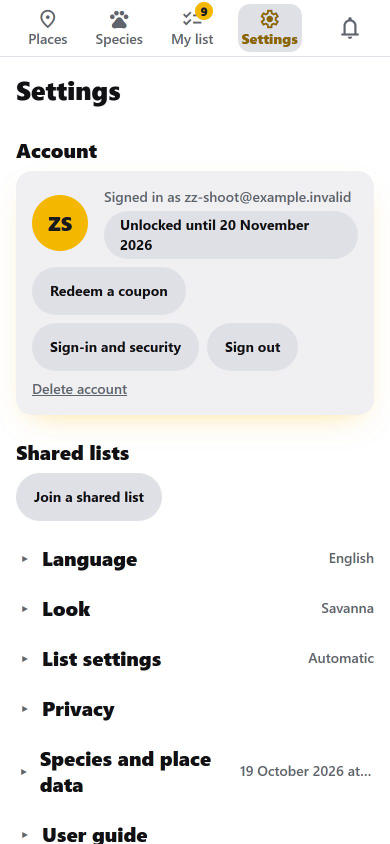
Settings → Account shows your email and your access ("Unlocked until …", "Locked") with buttons for Change password, Redeem a coupon, Sign out and Delete account. Deleting your account removes your account, list, seen marks, the text of your notes, your display choices, any feedback you sent, your check-in stamps and your sessions for good. An account nobody signed in to for a year is deleted automatically, with a warning email a month before.
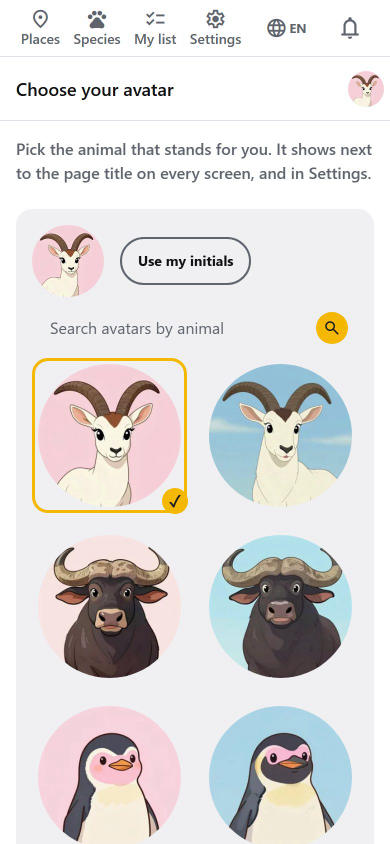
Your avatar. The round mark at the top of Settings → Account is your avatar: until you choose one it shows your initials. Tap it, or press Choose avatar, to open a page with animal pictures (type an animal's name in the search box above them to find it, in English or Hungarian); tap the one you like (it gets a frame and a ✓) or press Use my initials to go back. Your avatar then shows to the left of the title at the top of the main screens (and at the right of the top bar on the other screens, next to the language button), on every device you sign in on, and tapping it opens Settings. Hold the mouse over a picture (or press and hold on a phone) to see the animal's name. More pictures will be added over time.
9. The features that come with access
These need access (see section 8). The Species tab and My list are the heart of it.
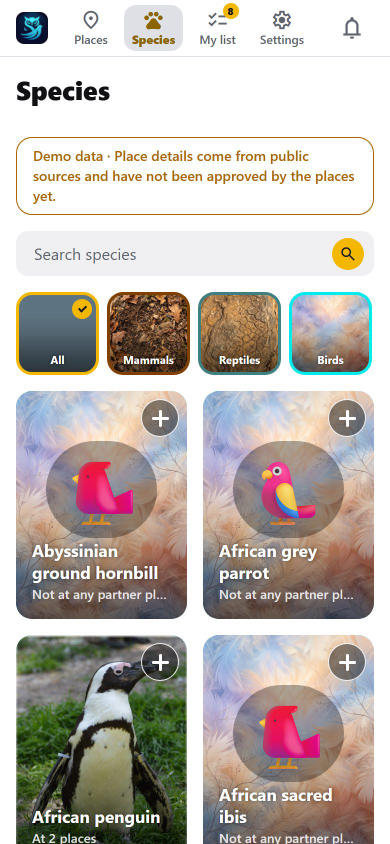
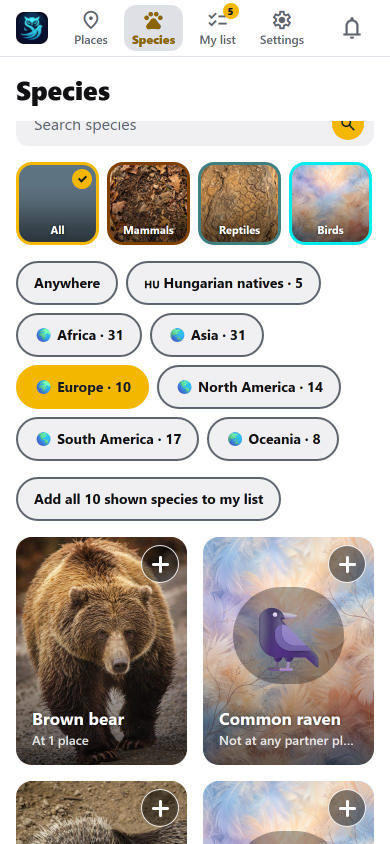
Where from. Under the groups, buttons narrow the list to the species native to Hungary, those found only in Hungary (endemic), or those native to a continent, each with how many there are. Handy for a class: with a filter on, Add all shown species to my list puts every species it shows onto the chosen list (your own or a shared one) in one tap. A species' page says which continents it is native to and whether it lives wild in Hungary.
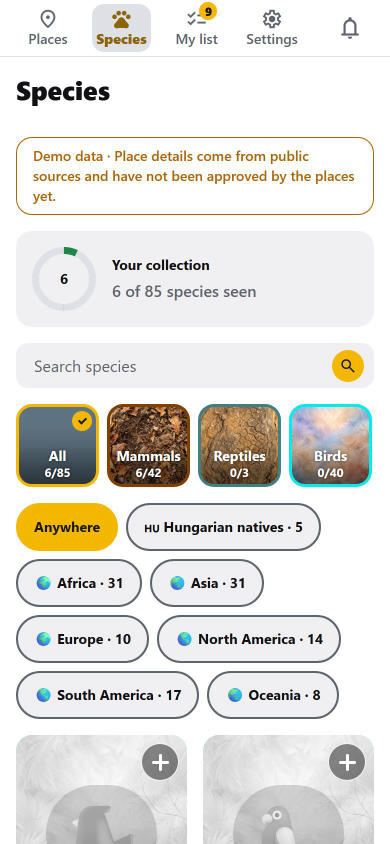
Your collection (with access). At the top of the Species tab a ring shows how many of all the species you have seen at any zoo, and under each group tile you see how far along it is (for example 4/42). Species you have not seen yet show their photo greyed; the ones you have seen are in colour with a ✓ Seen mark, so the grey is never the only sign. When one or two species are all that is missing from a group, a line says so ("One more completes Reptiles: Komodo dragon") and a tap shows that group. The origin chips (a continent, Hungary) show the same count, for example "Africa · 3/12 seen". Inside a zoo's page the species of that zoo look the same, with a line and a bar saying how many of its species you have already seen. Switch this look off in Settings → Species list → Collection look (kept on this phone or browser).
Seen it without ticking it? On a zoo's page, each species card has a round eye button in its top left corner. Tap it to mark the species as seen at that zoo: its picture turns to colour at once (and everywhere else). Tap it again to take the mark back. The eye is only there while the collection look is on.

My list and seen marks
Ticking an animal as seen gives a little pop and, on a phone, a light buzz (a stronger one when it is the last animal of that zoo's list). At the top of My list a ring fills as you tick, with the number inside, the numbers count up and the progress bars glide; on the phone the same ring circles the My list icon. Phones set to reduce motion skip the movement, and the buzz follows the phone's own vibration setting.
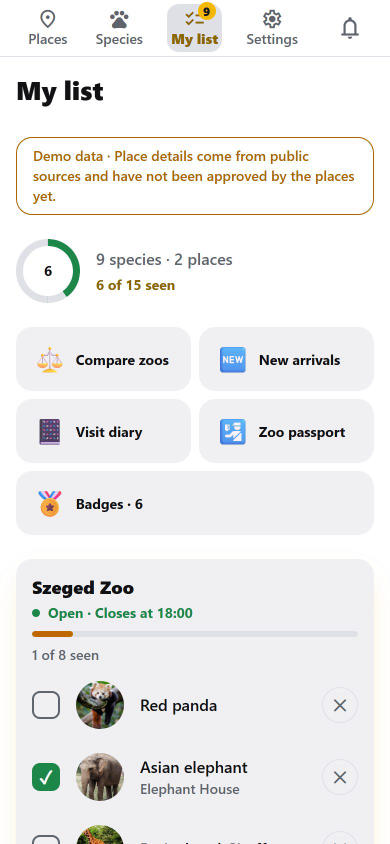
Use + on any animal. The button turns into a small spinner the moment you tap it, and taps on the same animal are ignored until it is on your list (a moment later it shows the ✓); the list is saved on your phone first and sent to your account afterwards, so a slow connection never holds it up. Open My list: your animals are grouped by zoo. Tap a tile to mark it as seen; ✕ removes one (after you confirm). A zoo's page also shows your list for that zoo with a count ("3 of 8 seen"). On the zoo's page the tiles are small: tap one to mark it as seen and hold it to open the animal's page; on the website each tile has a small i in its top left corner, and a click on it opens the animal's page. !Placeholder: the zoo's My list tiles on the website, each with the small i in the top left corner.
Going again. After a visit, open the zoo's page → My list and press Start a new visit. After you confirm, all the animals of that zoo are unticked, ready for the next day. Nothing is lost: your Visit diary and Badges still count every day you ticked animals, and the old days stay in the diary. (Shared lists have no such button.)
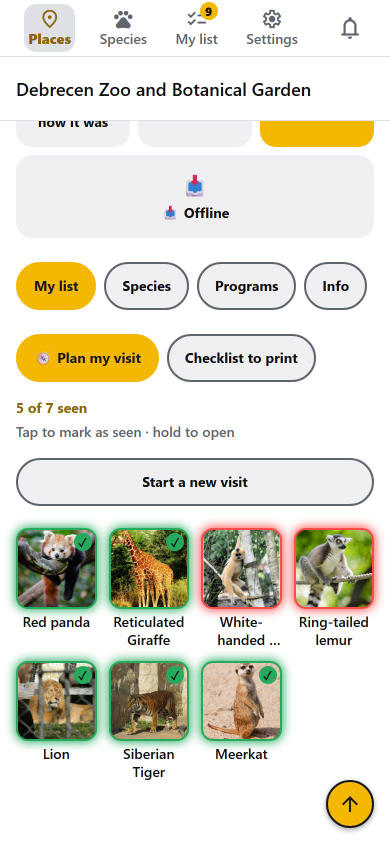
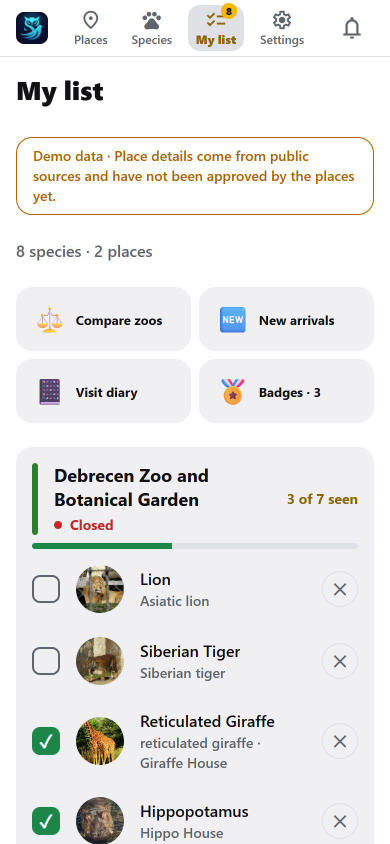
Plan my visit
From My list (or a zoo's My list section) tap Plan my visit. Pick the day and, if you like, your arrival time. The app orders your animals into a walking route that fits the day's feedings and ends before closing time, with the time at each stop. Walking times are estimates. Animals that do not fit are listed as "No time left" or "Not on the map". Drag a stop by its ⠿ handle to change the order. Tick animals off during the day and the rest is re-planned from there. Show the route on the map draws numbered stops.
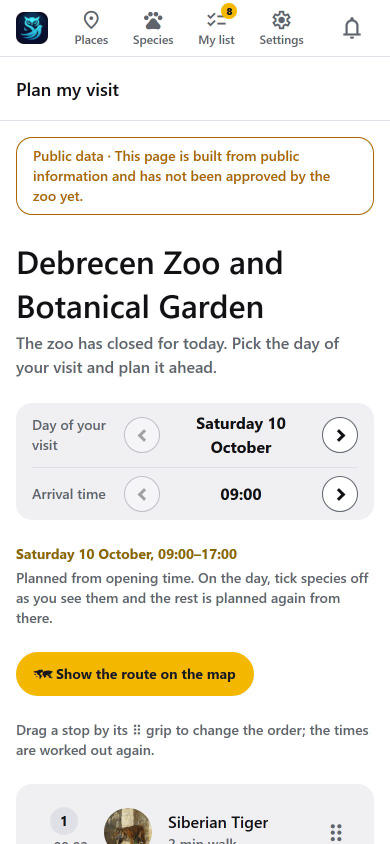
Where to start. By default the app starts the walk at the gate that gives the shortest route. In a zoo with two or more gates, a Start from row lets you choose the gate you are at: the route is worked out again from it. 📍 Gate nearest to me (today only) asks for your location and picks the nearest gate; if you are not near the zoo, it says so and picks nothing. On the route map, tap a gate and then Start the visit here to do the same. A gate without a name is called Entrance 1, Entrance 2… in map order. The choice is not remembered: it is gone when you close the app, and each day starts again with the best gate. Ticking off an animal makes the walk continue from that animal, as before.

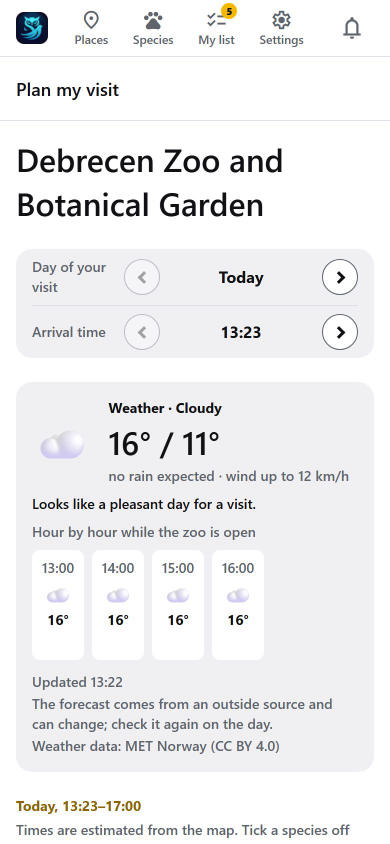
Weather. Under the day and arrival time, Plan my visit shows the forecast for the day you picked (as far ahead as the provider covers, about nine days): the weather, the highest and lowest temperature, the rain expected and the wind, a short piece of advice ("Rain is likely from about 14:00: do the outdoor part before, the covered houses after") and the hours the zoo is open. It comes from an outside source, MET Norway (the Norwegian Meteorological Institute), through our server, and can change, so look again on the day. For a day the provider does not cover yet, the card says the forecast is not available from MET Norway. The phone keeps the last forecast for when you are offline and marks it as not up to date. Only the zoo's place is sent to the weather service, nothing about you.
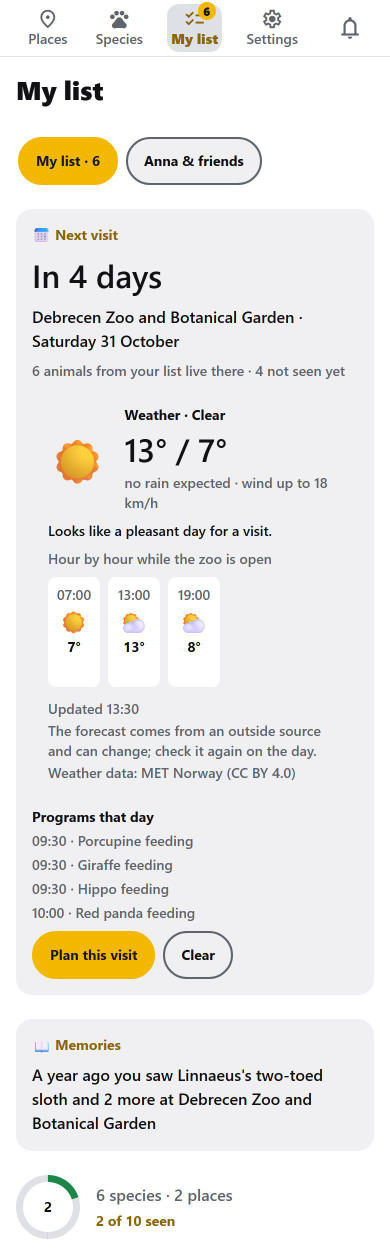
Your next visit. For a day after today, Plan my visit offers Make this my next visit. My list then opens with a card: the countdown (today, tomorrow, in N days), how many animals from your list live at that zoo and how many you have not seen yet, the weather, and the programs of that day. Tick Remind me the evening before (phone app) and you get one notification at 18:00 the evening before; the phone asks for permission the first time. The reminder is made on your phone, so its list of animals is brought up to date whenever you open My list. It is kept on this phone only, and Clear removes it.
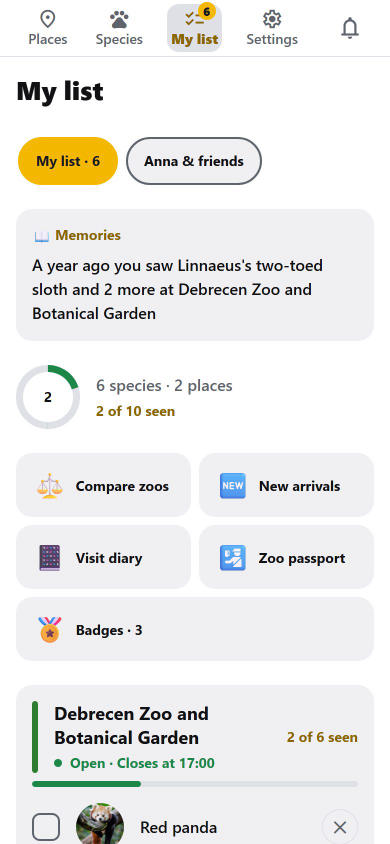
Compare zoos, New arrivals, Visit diary, Badges
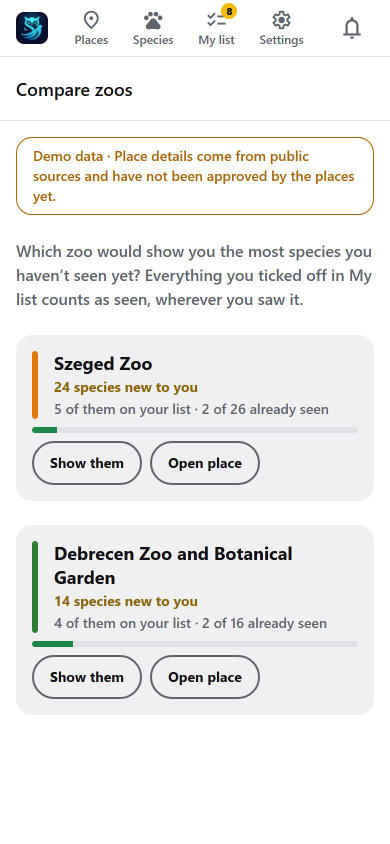
- Compare zoos — each zoo with N animals new to you, how many of them are on your list, and a progress bar.
- New arrivals — animals zoos marked as new, newest first, with a count of what is new since you last looked. In the bell screen you can switch on a notification for each new arrival (phone app, full access).
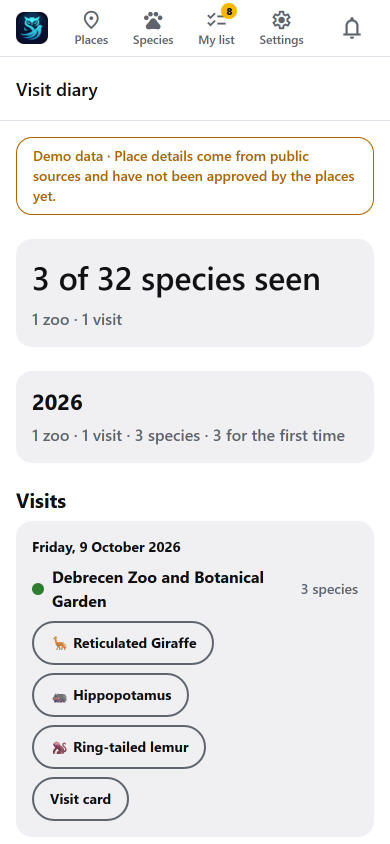
- Visit diary — every visit (one zoo, one day) with the animals you ticked off in order, and totals per year.
- Badges — milestones (species seen, zoos visited, visits made) and collections per animal group and per zoo, plus special collections such as "every big cat". Quiet on purpose: no pop-ups.
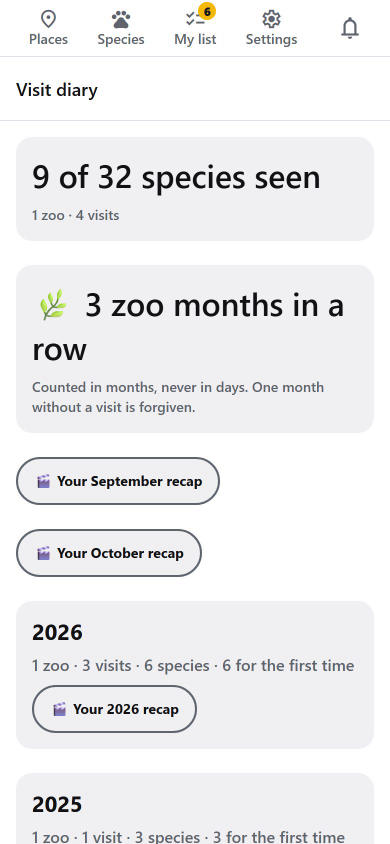
- Zoo months in a row — at the top of the Visit diary, once you have visited a zoo in two or more months in a row. It is counted in months, never in days, and one month without a visit is forgiven. It says by when one more visit keeps it going and shows your longest run; it never nags and there is no countdown.
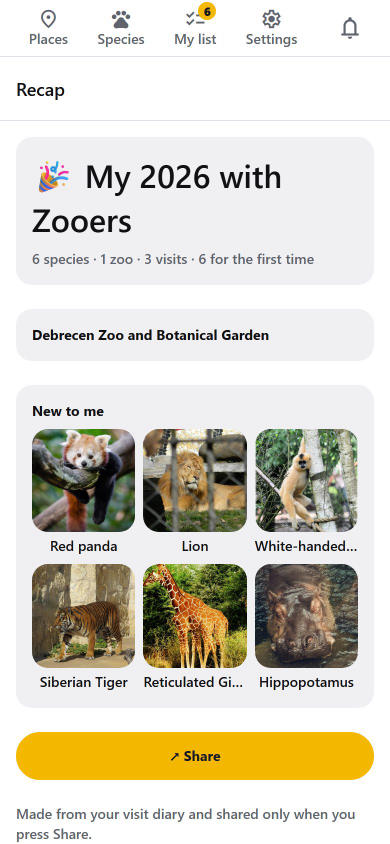
- Recap — in the Visit diary, Your 2026 recap under each year and Visit recap under each visit open one summary: how many animals, zoos and visits, and the animals you saw for the first time as pictures. Share sends it as text through your phone's share sheet. It is made from your diary and goes nowhere unless you press Share. In the first ten days of a month, My list also offers Your {month} recap for the month that just ended (the same recap, for one month; the Visit diary keeps a button for last month and this one).
- Memories — on My list, a card says things like "A year ago you saw a sloth bear and 2 more at Szeged" for visits of earlier years within three days of today's date. It is made from your diary, appears only when there is such a visit, and is never sent as a notification.
Notes and photos
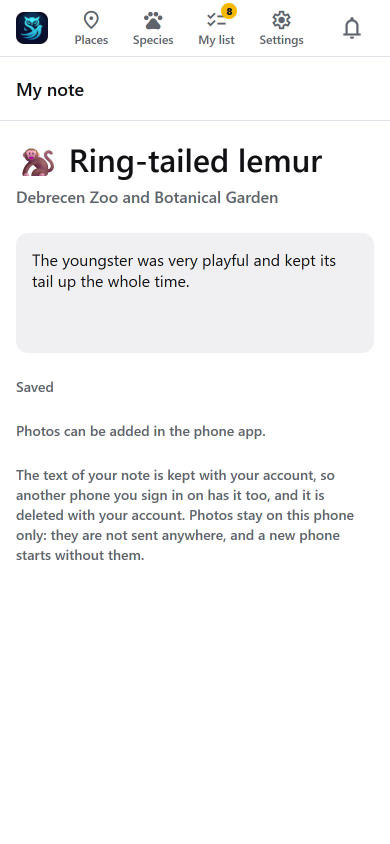
On an animal's page at a zoo, tap Add my note. Type a note (saved as you type) and add up to 3 photos from the camera or gallery. The text of your note is kept with your account, so another phone you sign in on has it too (the newer edit wins if you edited on two phones), and it is deleted with your account. Photos stay on your phone only: they are never sent to us, and a new phone starts without them. Photos can only be added in the phone app.
Offline zoo pack (phone app)
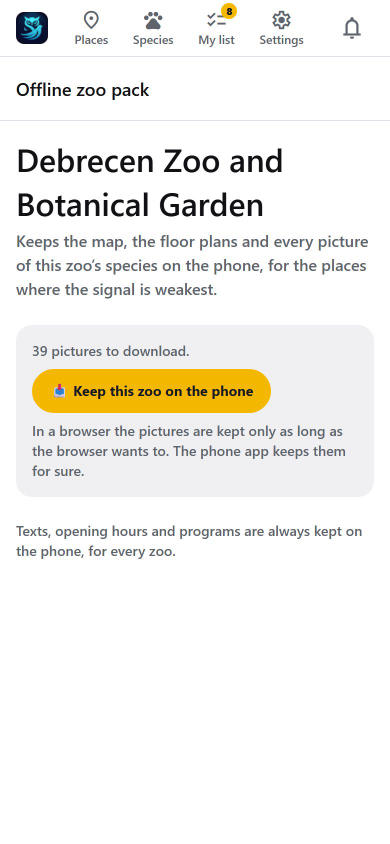
On a zoo page tap Offline, then Keep this zoo on the phone. The app downloads every picture of the zoo and shows Kept on this phone. It updates the pack by itself when the zoo changes. The zoo's texts, hours and programs are always kept on your phone, even without the pack.
10. Shared lists: families and school classes
A shared list lets several people use one checklist. When you belong to one, My list gets a switcher so you choose which list you are ticking.
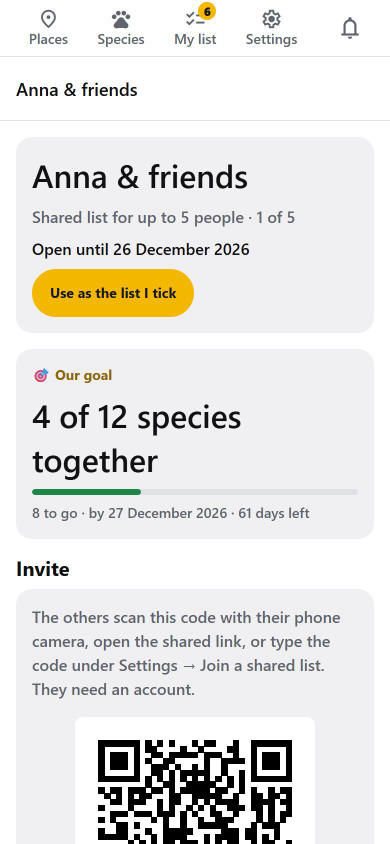
Group (family) list — up to 5 people. The owner creates it with a group code. Others join by scanning the QR code, opening the invite link, or typing the code under Settings → Join a shared list. They need an account and choose a nickname shown only inside the group. Everybody can tick animals; a tile shows who saw it. The group has its own access period; when it ends it becomes read-only until the owner extends it.
Class trip list — up to 40 phones. The teacher redeems a class code, sets the trip day and shows the QR code. Pupils join without an account and without a name: each phone gets a team name (Team Otter, Team Fox…), or the teacher's own names. Only the teacher edits the animals; the teams tick what they see; the teacher sees each team's progress. A teacher can have up to three class lists, sharing 40 phones in all. The class list is deleted 7 days after the trip day, with all ticks.
A goal for the list. The owner of a group list, or the teacher of a class, can set a goal on the list's screen: how many different species you reach together (for example 100), and optionally by which day. Everybody in the list then sees a bar with "52 of 100 species together" and how many are left. Only the list's total counts: nobody is ranked, and nothing is compared with other lists. If the day passes before the goal is reached, the screen only says so; what you saw together still counts. Leave the number empty to remove the goal.
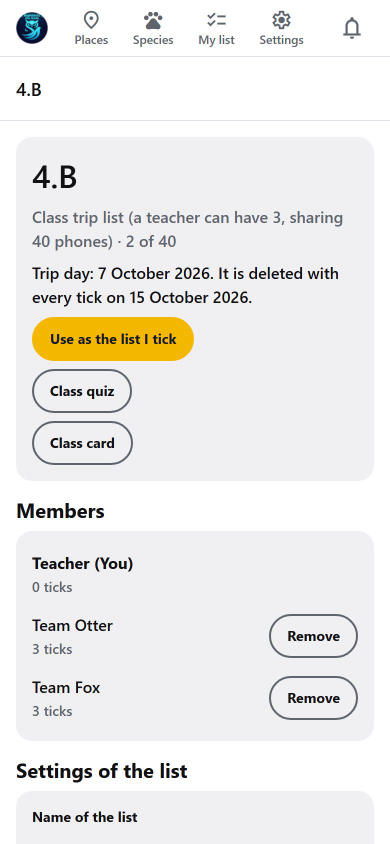
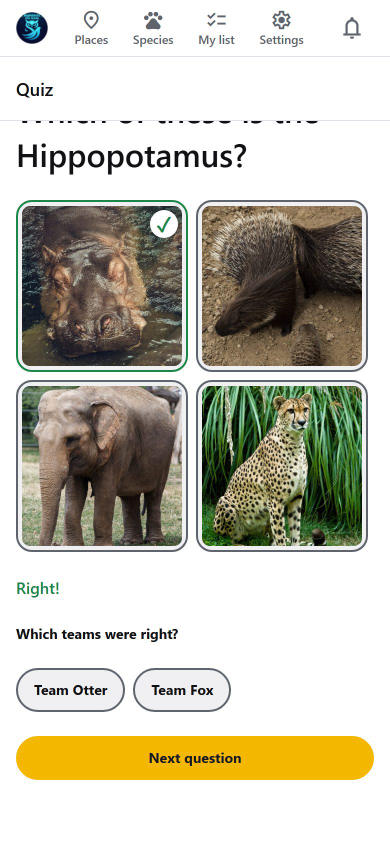
Class quiz. From the class screen the teacher presses Class quiz and runs the quiz on their own phone, about everything the class has ticked so far (it works half way through the trip), the class list, or all animals. After each answer the teacher ticks which teams were right. At the end the team scores show, the best teams are ticked as winners (tap to change), and Give the Quiz winner badge sends the badge to those teams' phones. The teacher can make a certificate for each winner to print, save, send or share. A team's phone shows the badge under Quiz → Badges from your class, with a certificate that carries the team's name; it stays on the phone after the class is gone.
Favourite animals
Everybody can mark animals as favourites, free, signed in or not. On an animal's page tap ♡ Favourite, or tap the ♡ on a row of the Species tab when it is shown as a list (there is no heart on the picture tiles or the map cards, only where there is room). The Species tab's ♥ Favourites (n) chip shows only your favourites.
- Private and in your order. The list is yours alone. You can keep up to the number the owner has set (50 at first); at the limit the app says so and asks you to remove one. Under Settings → Zoo friends (when Zoo friends is on) you can move animals up or down: the first ones, marked Shown to friends, are your Top list (5 at first) on your fan card, and only those are shareable. Change the order and the card follows.
- On the phone, and with your account. Signed out, the list stays on the phone only. While your account has access (a paid month, a coupon or the sign-up grace period) it is also kept with the account, so a new phone has it. If the access runs out the list keeps working on the phone; when access comes back, the phone's newer list is sent to the account.
- The ⓘ next to the button (when Zoo friends is on) tells you that your first favourites are shown to friends.

Zoo friends (when it is switched on)
Zoo friends is a small, private circle for people aged 16 or more, for visiting zoos together. It appears under Settings → Zoo friends only when we have switched it on, and only when you are signed in. There is no search for strangers, no chat, no photos and nothing to type: you only meet people you invite, and everything is a nickname, a favourite animal or a ready-made reaction.
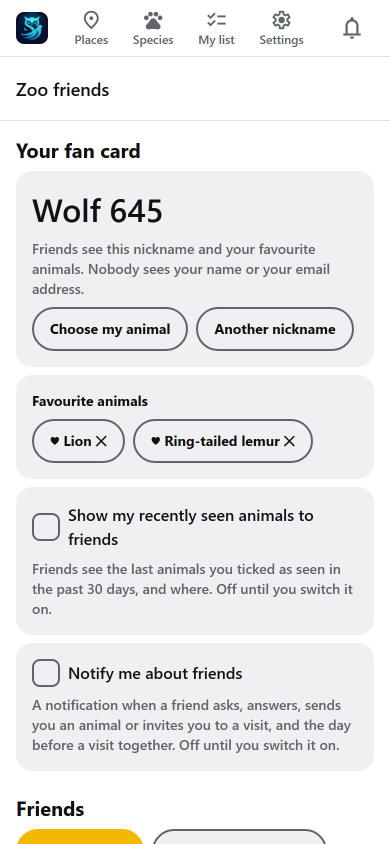
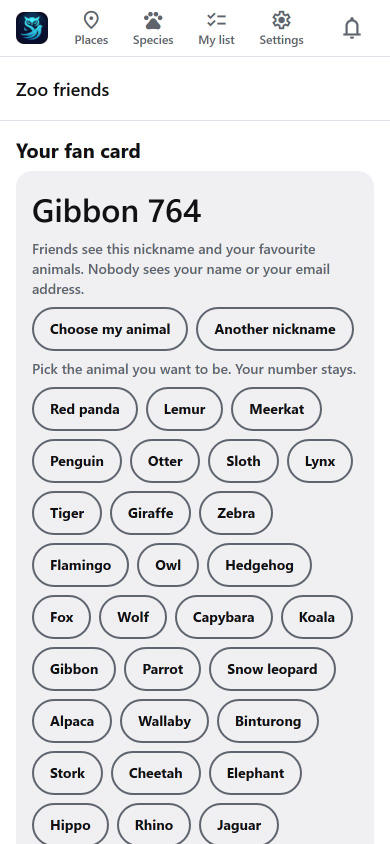
- Your fan card. You confirm that you are 16 or older and the app makes your card: a nickname made of the animal of your avatar and a number (for example "Owl-007"): choose your avatar under Settings → Account and the animal follows it (until you do, the animal is picked by chance), Another nickname gives a new number any time, and the first of your favourite animals (your Top list, see Favourite animals) are shown on it. Friends never see your name or email address. You can also let friends see the animals you recently saw (off until you switch it on).
- Add a friend. Press Invite a friend: you get a code, a link and a QR code that work once, for a week. Your friend opens the link (or types the code under I have a friend's code), which sends you a request, and you accept. You are friends only when both have agreed. You can have up to 50 friends.
- See what you share. A friend's card shows what they love and a line like "You both love: Lion". If they share it, it also lists what they saw lately and where.
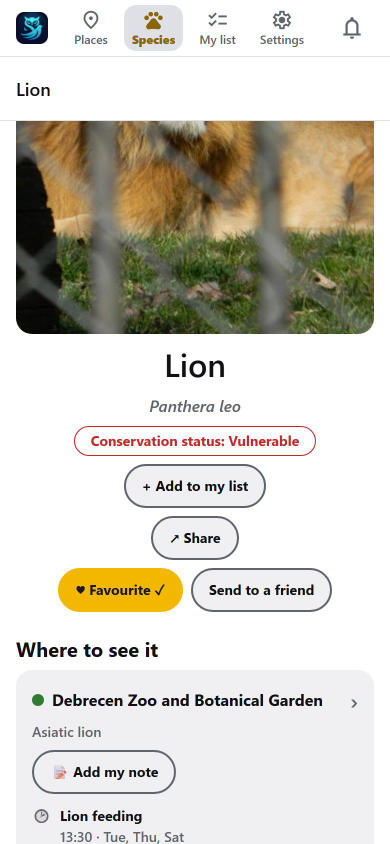
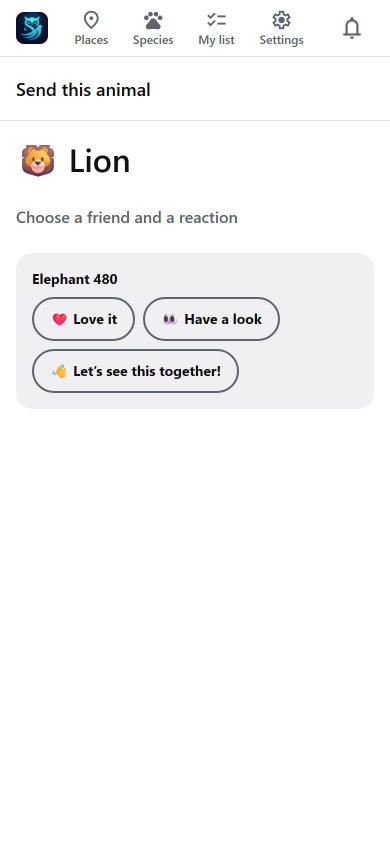
- Favourites and sending an animal. On an animal's page, ♥ Favourite adds it to your favourites (the first ones are what friends see), and Send to a friend sends it with a ready-made reaction: ❤️ Love it, 👀 Have a look or 👋 Let's see this together! Your friend finds it under From friends (kept for 30 days).
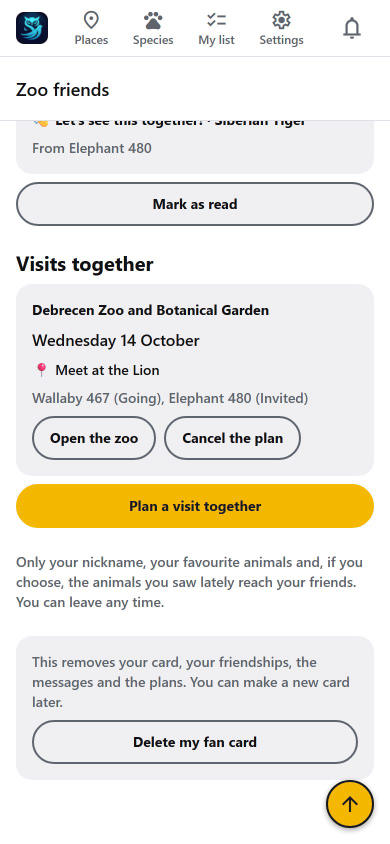
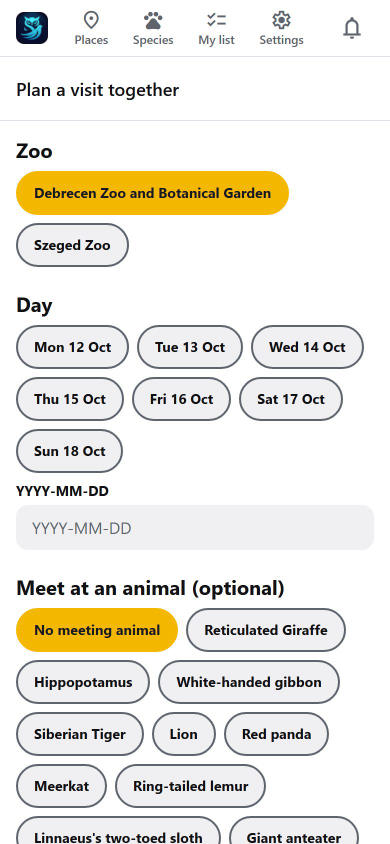
- Visits together. From a zoo's page or from Zoo friends, Plan a visit together: choose the zoo (the Choose a zoo button opens a window of zoo tiles with a search, the same cards as the Places list (with the zoo's own picture or the default one, and your cards-per-row choice from Settings → List settings); tap one and it closes), the day (tap one of the next days, type it as digits, 20261112 turns into 2026-11-12 by itself, or press 📅 and pick it in the calendar), an animal to meet at (choose the zoo first, the zoo's animals then appear; they show as the same tiles as everywhere else: your cards-per-row choice from Settings, and a search; tap a tile to choose it, tap again to clear; a place on the map, never your position) and the friends to invite. Making a plan needs full access; a friend who is invited can answer I'm going or I can't come without needing access. The owner of a plan can change it later (Change the plan on its card): the day, the animal to meet at and who is invited. Everybody in a plan (the invited friends too, until they decline) can also keep a shared list of animals to see together: choose them when making the plan, or press Animals to see on the plan's card; the list shows on the card for everybody (up to 20 animals). People who stay keep their answer; if the day changes, everybody has to answer again, and new invitees get the invitation. A friend you invited can tap I can’t come (the plan stays on their list, shown as not going) or Remove from my list (it disappears for them only); you can still cancel your own plan, and everybody who was going hears about it. When you change the day or the animals, your friends get a message that says which. Visits that have passed move out of the list: tap Show past visits to see the history, kept for a year.
- Notifications about friends. Switch on Notify me about friends (off until you do; the phone asks for permission) to get a short notification when a friend asks to be your friend, accepts, sends you an animal or invites you to a visit, and a reminder the day before a visit together (from the early evening). The messages only say who and what, in your language; tapping one opens Zoo friends. At most 20 a day. Switch it off any time.
- Staying in control. You can remove a friend, block somebody (you stop being friends and cannot find each other again) or report them with a ready-made reason. Delete my fan card removes the card, the friendships, the messages and the plans.
Communities around an animal or a zoo, if there will be any, are not part of the app: they will live on Facebook pages under that network's own rules.
11. Notifications and the bell
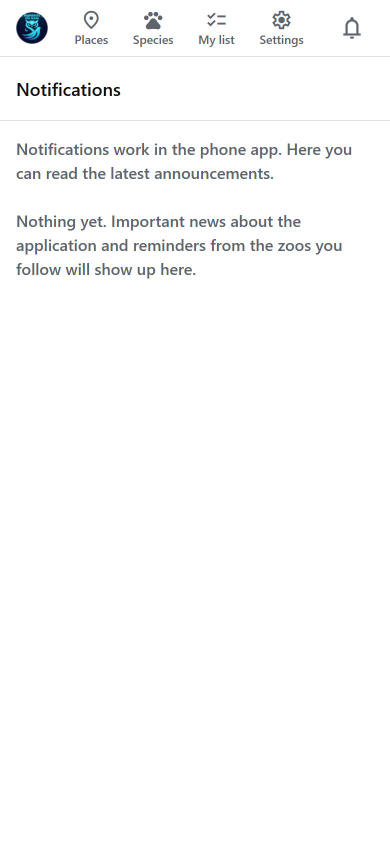
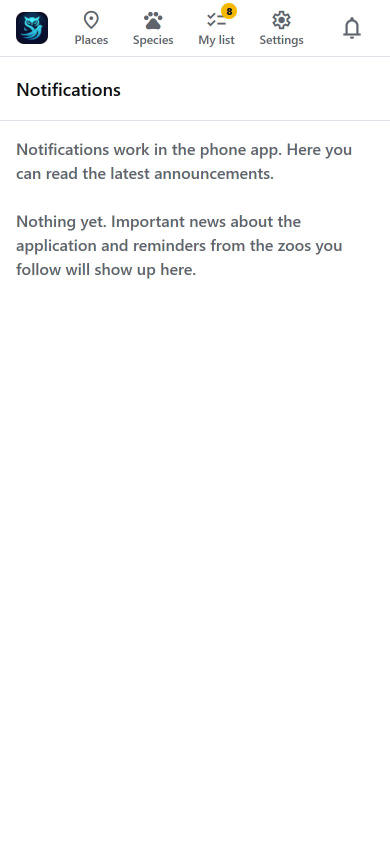
The bell at the top right of every screen opens the notifications screen. A dot means something is unread.
- Announcements — rare, important news about the app or the zoos. Also without an account.
- Zoo notifications (phone app) — open a zoo and tap Notify me. You get a reminder the evening before special events at that zoo, and messages the zoo sends. A zoo sends at most 10 a week. Following a zoo needs access, except for zoos that have opened their notifications to everyone.
- New arrivals (phone app, with access) — on the notifications screen you can switch on a notification for new animals at any zoo. You get one message when new arrivals are announced, and tapping it opens the New arrivals list. The switch is off until you turn it on, and it stops at once when you turn it off. At most a few of these come in a week. When one of the new animals is on your own list, the message says so ("On your list: Red panda has arrived") and puts it first; it is still one message, never an extra one.
- The bell keeps the latest messages on your phone.
- The web app has no push notifications; the bell shows the latest announcements.
On first use the phone asks permission to show notifications. If you refuse, you can allow them later in the phone's settings.
12. Settings and this guide
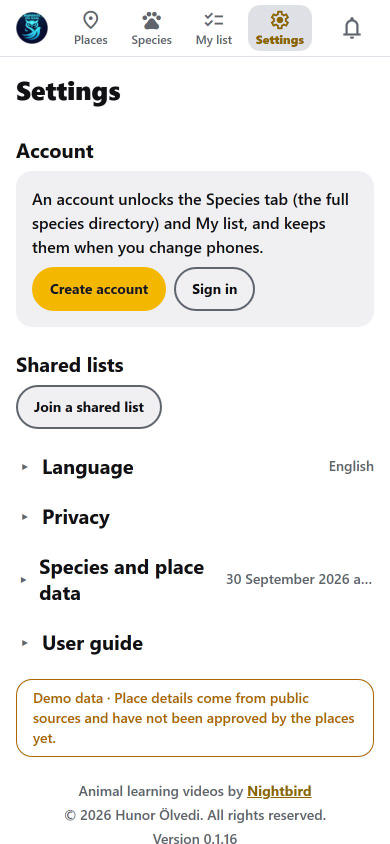
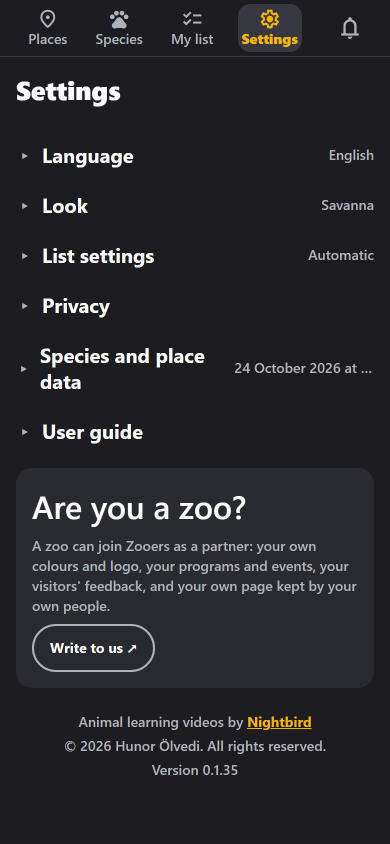
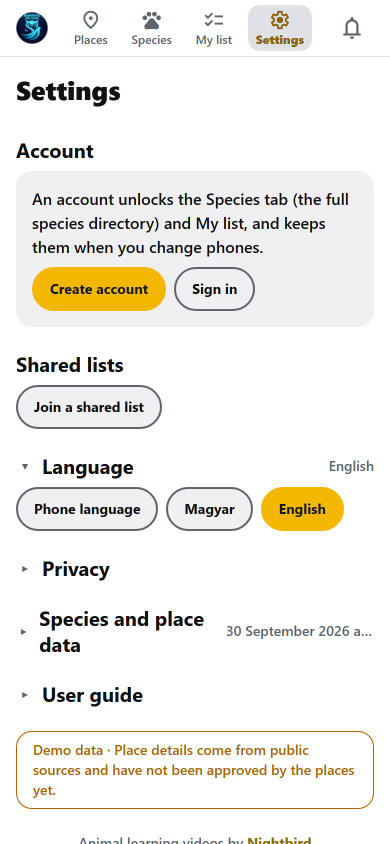
Settings is a short menu. Tap a section to open it.
Get the app / use it on your iPhone. In the web app, a bar at the top (and a button at the top of Settings) leads to the Get the app page: on an Android phone the Google Play button, on an iPhone or iPad four steps that put the web app on the Home Screen so it opens full screen like an app (in Safari: Share, then Add to Home Screen, then Add), on a computer both. Close the bar with Hide and it stays away; it is never shown inside the installed web app.
Wildlife events. When the app's owner has listed festivals, conferences, open days or other wildlife-related events that have not ended yet, an Events page appears (a tab before Settings in the phone app, an item in the browser menu, and a button at the top of Settings in the browser). Each event is a card with its days, its place, a short text and, when the organiser has one, a picture; tap it to open the organiser's page. Past events disappear by themselves, and with no upcoming event the page is not there at all.

- Account and Shared lists — sign in or out, join a shared list.
- Language — Phone language (Browser language on the web), Magyar or English.
- List settings — Places: cards in a row (Automatic, 1, 2 or 3 zoo cards side by side in the Places list; a narrow screen shows fewer; kept on this phone or browser, and with your account when you are signed in, so it follows you to another phone). With access also the Species list: the group the Species tab opens on, and 2, 3 or 4 cards in a row. That choice belongs to your account: it follows you to another phone you sign in on.
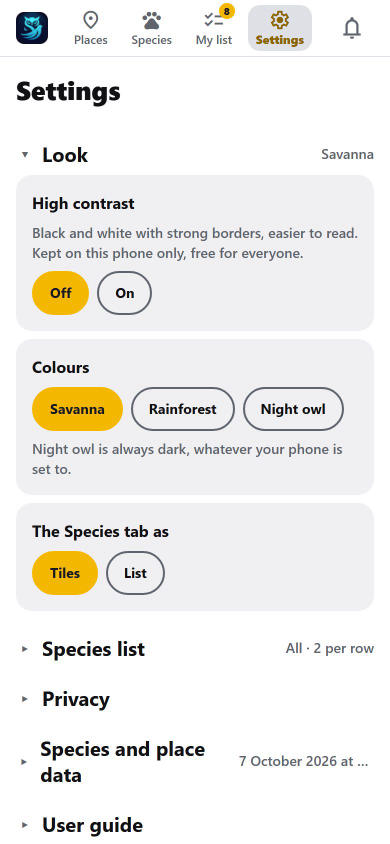
- Look — High contrast (black and white with strong borders; kept on this phone only) and, for accounts with at least one month of full access, three colour looks (Savanna, Rainforest, Night owl), the Species tab as tiles or a list, and the design of the zoo pages (Follow the app, Classic or Zoo places, see section "Zoo places" above). Night owl is always dark, except inside a zoo: a zoo's own pages follow your phone's light or dark setting, because a zoo dresses its own pages.
- Privacy — what is stored, and the full privacy policy.
- Species and place data — when the content was last updated.
- User guide — this guide.
- Are you a zoo? — a short card at the bottom for the people who run a place: a zoo can join as a partner and get its own colours and logo, its own programs and events, its visitors' feedback and a page its own staff keep. Write to us opens your mail app with the address already filled in. If you are a visitor, there is nothing to do here.
This guide is a web page, zooers.hu/help. In the web app, Settings → User guide opens it. In the phone app downloaded from the website it opens inside the app, and Keep for offline use saves a copy on your phone, so you can read it without a connection. In the Google Play version of the phone app, Settings tells you the address to open in your browser.
13. Web app or phone app
You can use Zooers in a browser at zooers.hu, or as an installed Android app (on an iPhone use the web app).
| Web app | Phone app (Android) | |
|---|---|---|
| Installation | None | Google Play, or the APK from the website |
| Create an account | ✅ | Google Play version: no, do it on the website. The APK from the website: yes |
| Sign in | ✅ | ✅ |
| Pay for access | ✅ the only place | ❌ never in the phone app |
| Places, zoo pages, animals, programs, maps | ✅ | ✅ |
| Quiz, badges, certificates | ✅ | ✅ |
| My list, Plan my visit, Compare, Diary, Badges | ✅ with access | ✅ with access |
| Push notifications | ❌ | ✅ |
| Photos on notes | ❌ | ✅ |
| Offline zoo pack | Best effort | ✅ a real, checked pack |
| Works without signal | Limited | ✅ the content is kept on the phone |
| This guide | Opens on the website | APK from the website: inside the app, with an offline copy. Google Play version: open the address in your browser |
Your account and your list are the same everywhere. The phone keeps a copy so the app works in the zoo without signal and catches up when you are online.
14. Privacy and your data
- No ads, no tracking, no location upload. Your position (if you allow it) is used only on your device to show where you are on the map.
- Anonymous counters are always on: only counts such as "an animal page was opened", never linked to you.
- Without an account nothing about you is stored.
- Extended access: for accounts with extended access we keep the details the law requires (a name and address, and a company name and tax number for a company) with the order record for 8 years (the accounting law), the invoice comes by email, and card payments are handled by Barion on its payment page: we never see your card details. Barion's fraud-prevention script runs on the payment pages of our website only and sets four fraud-prevention cookies there (no marketing cookies).
- With an account we store your email address, your password (as a one-way hash), your list, your seen marks with the zoo and the time, the text of your notes on animals (never your photos), your votes in zoo initiatives (the zoo, the question and the option, only so nobody votes twice; nobody sees who voted for what), your Species-list and Look display choices (the group shown first, cards per row, colours, tiles or list, the design of the zoo pages), the zoos you follow, whether you asked for new-arrival notifications and, if you send it, your feedback to a zoo (score and ticked points, with the zoo and the visit day; only the zoo and the owner read it, without your name) — never your location (a position check for a visit stamp happens on your phone only), and the zoo and day of each visit stamp you collect.
- Quiz scores and badges stay on your phone (or with your account's phone), not with us. A class badge is kept for the team's phone only while the class exists, then stays on the phone.
- Shared lists: members see only the nicknames and ticks inside the list. A class list and its ticks are deleted 7 days after the trip day.
- The text of your notes is kept with your account; photos stay on your phone and are never sent to us.
- You can delete your account any time under Settings → Account. The full Privacy policy is under Settings → Privacy.
15. Accessibility
Accessibility is always included.
- Screen readers (TalkBack, VoiceOver): every tile, pin and button has a label that says what it is and its state.
- Large text is supported up to your phone's largest setting.
- Contrast is checked in the light and dark looks and in every colour look. For more, Settings → Look → High contrast switches to black and white with strong borders, with or without an account.
- Reduce motion is respected.
- Nothing relies on a gesture only: swipes between sections always have a button that does the same.
- In the quiz, a right or wrong answer is shown with a ✓ or ✕, not by colour alone.
- Zoos publish their own accessibility information on the Info page, in your language.
16. Troubleshooting and FAQ
I can't see the Species tab or My list. They need access. Sign in, confirm your email (this starts your free trial), or extend your access. A zoo's own pages never need an account.
I created an account but still see "Please confirm your email". Open the link in the email (check your spam folder). The app notices by itself within a few seconds.
My free trial ended. Your list is still saved. Extend your access or redeem a coupon and everything unlocks again.
I want to extend access but the phone app has no button for it. That is by design: the phone app unlocks by itself as soon as your access is extended.
I can't create an account in the phone app. The Google Play version has no sign-up: create the account on the website, then sign in on the phone.
I did not get any email. Check spam and use Send the link again. Throwaway addresses are not accepted.
Notifications don't arrive. They work in the phone app only. Allow them when asked (or in the phone's settings) and tap Notify me on the zoo.
A zoo says closed, but its website says open. The app shows the hours the zoo gave us, including special days. For last-minute closures check the zoo's own website.
The map pictures don't load without signal. A map picture is downloaded the first time you open it online. Use Offline on the zoo page before you leave home.
The quiz says there are not enough facts or pictures. The animals you chose (for example only your list) do not have enough facts or photos for ten questions yet. Pick All animals.
My class badge is missing on a pupil's phone. The phone picks it up when it next opens the app with a connection. Ask the pupil to open the app while online.
The app says my version is too old. Update the app. It shows a banner first and only after a published deadline requires the update.
How do I get the app on my iPhone? Use the web app at zooers.hu in Safari.
Who makes the app? Made by Nightbird. Place information comes from public sources and the partner places; the app says when a place's details have not been approved by it yet.
Which features, trial length and access options are active can change. The website and the information inside the app are always the current truth.
Back to top ↑